

Before you start
- Use Google Chrome or Microsoft Edge on a computer. The setting does not appear in Safari or Firefox.
- Sign in to the Allo web app at web.withallo.com in that browser.
- The setting is saved in this browser only. Turn it on again in each browser and on each computer you use.
- The setting is for the web app. It does not appear in the Allo desktop app.
How to turn on phone links
1
Go to Settings > Profile
In the Allo web app, click Settings in the left sidebar, then Profile.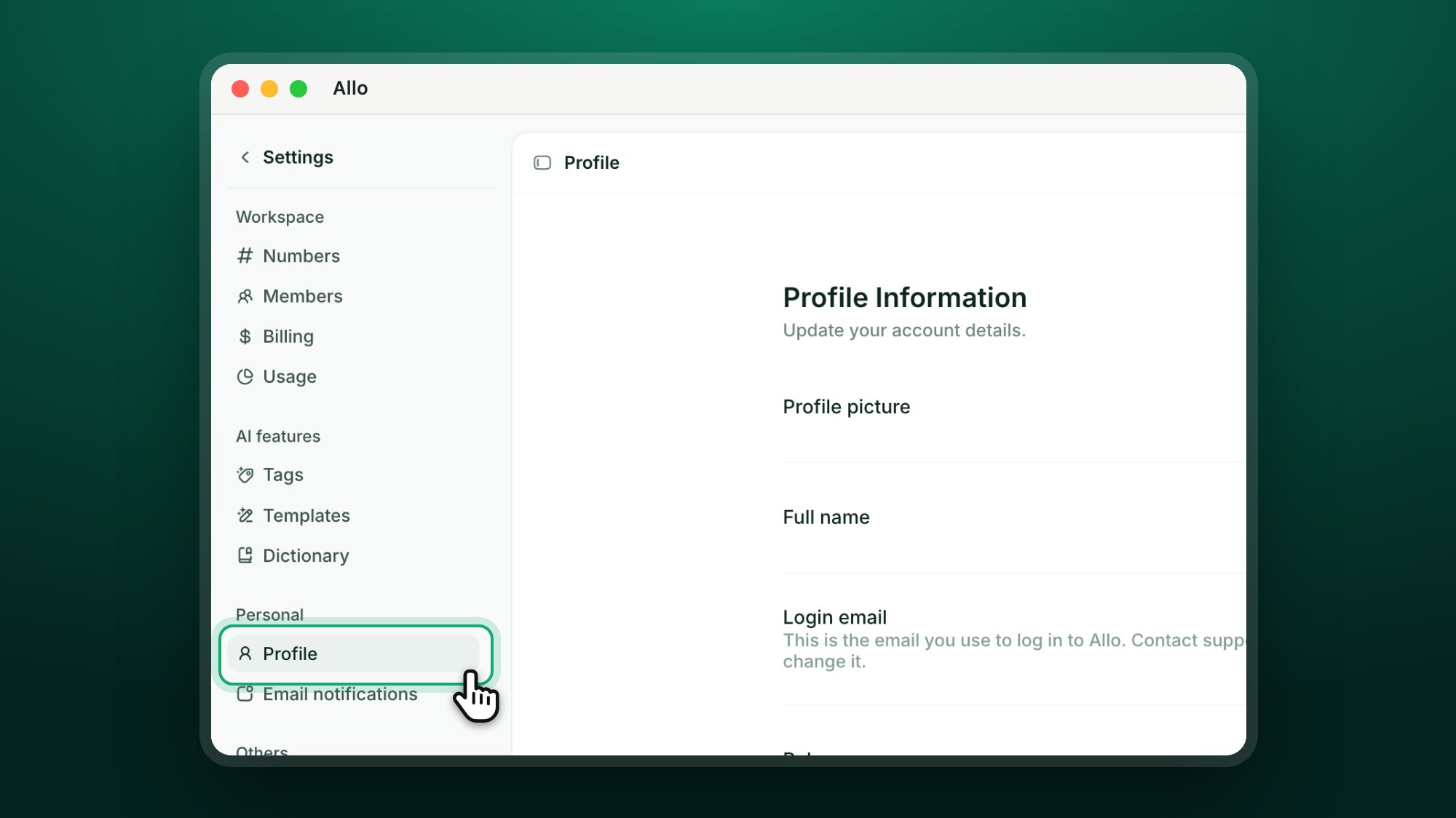
2
Turn on Use Allo for phone links
Scroll to the Click-to-call section and turn on Use Allo for phone links.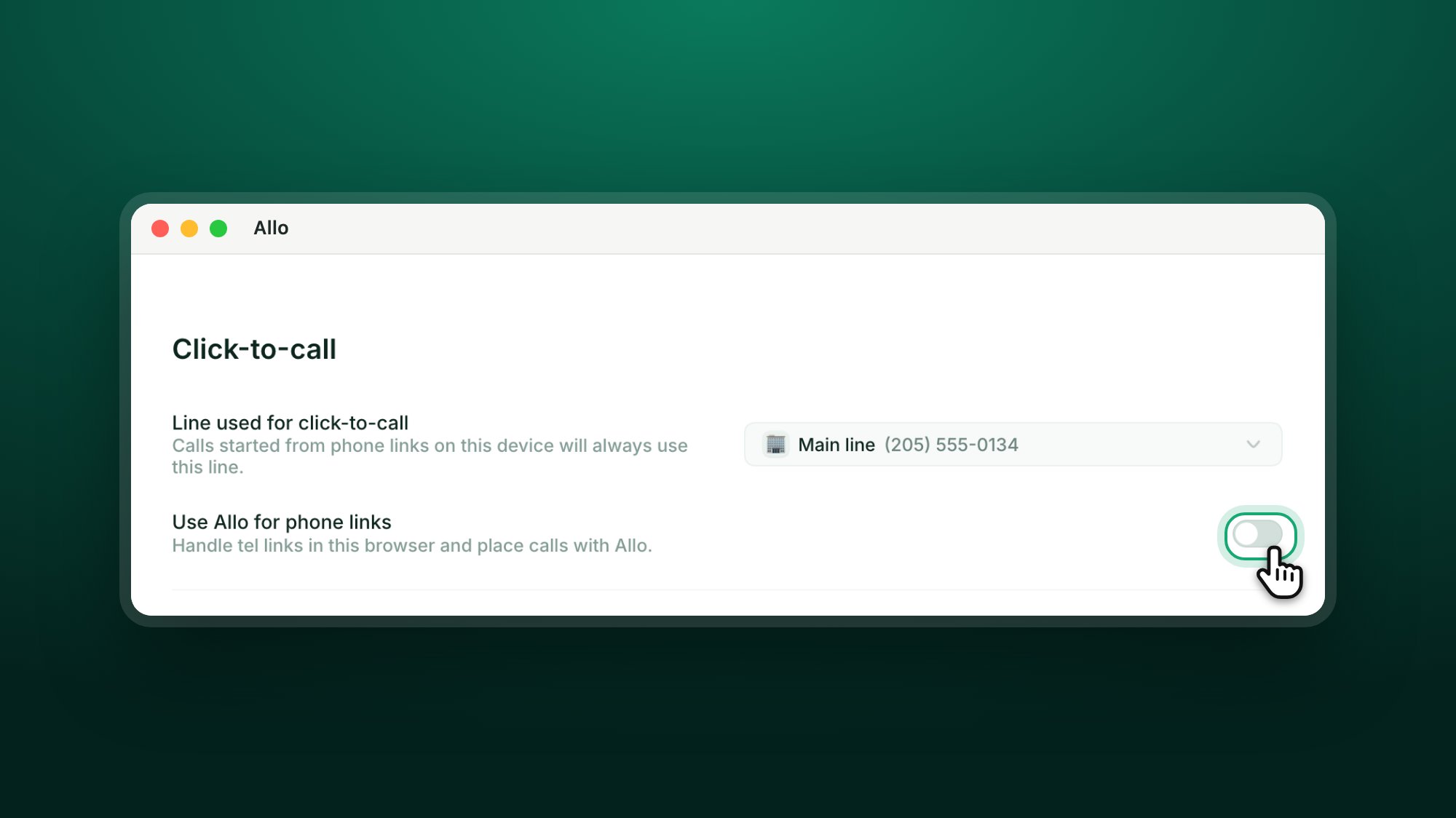
3
Allow it in your browser
Chrome shows a prompt under the address bar: web.withallo.com wants to Open tel links. Click Allow.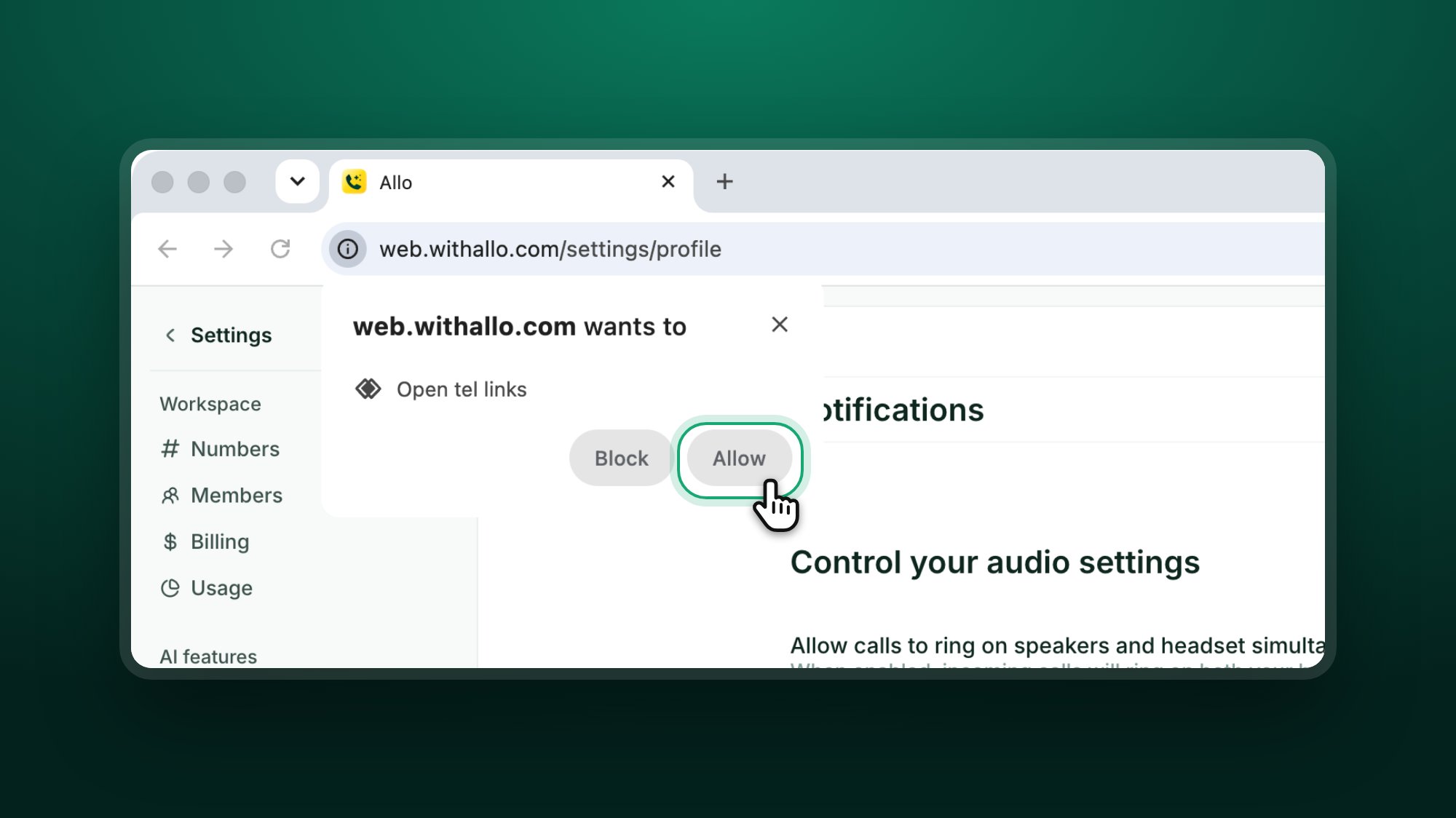
4
Choose a line, if you have more than one
In the same section, pick a line in Line used for click-to-call. Calls from phone links always use this line. If you skip this step, Allo asks which line to use the first time you click a phone link, then remembers your choice. With one line, Allo uses it and there is nothing to choose.
Try it
Go to a website that shows a phone number as a link, such as a contact page, and click the number. The Allo web app opens and the call starts.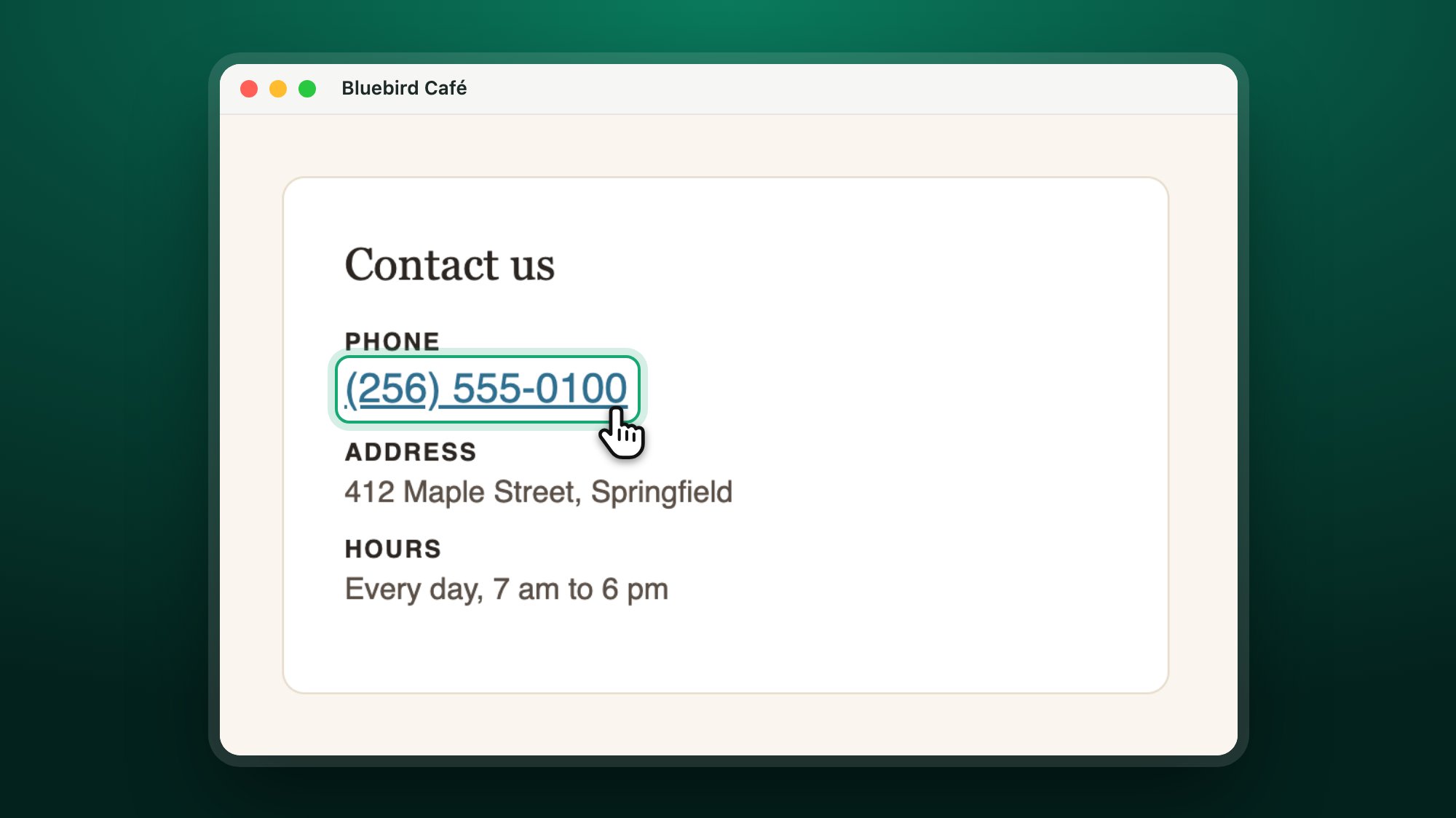
How to turn off phone links
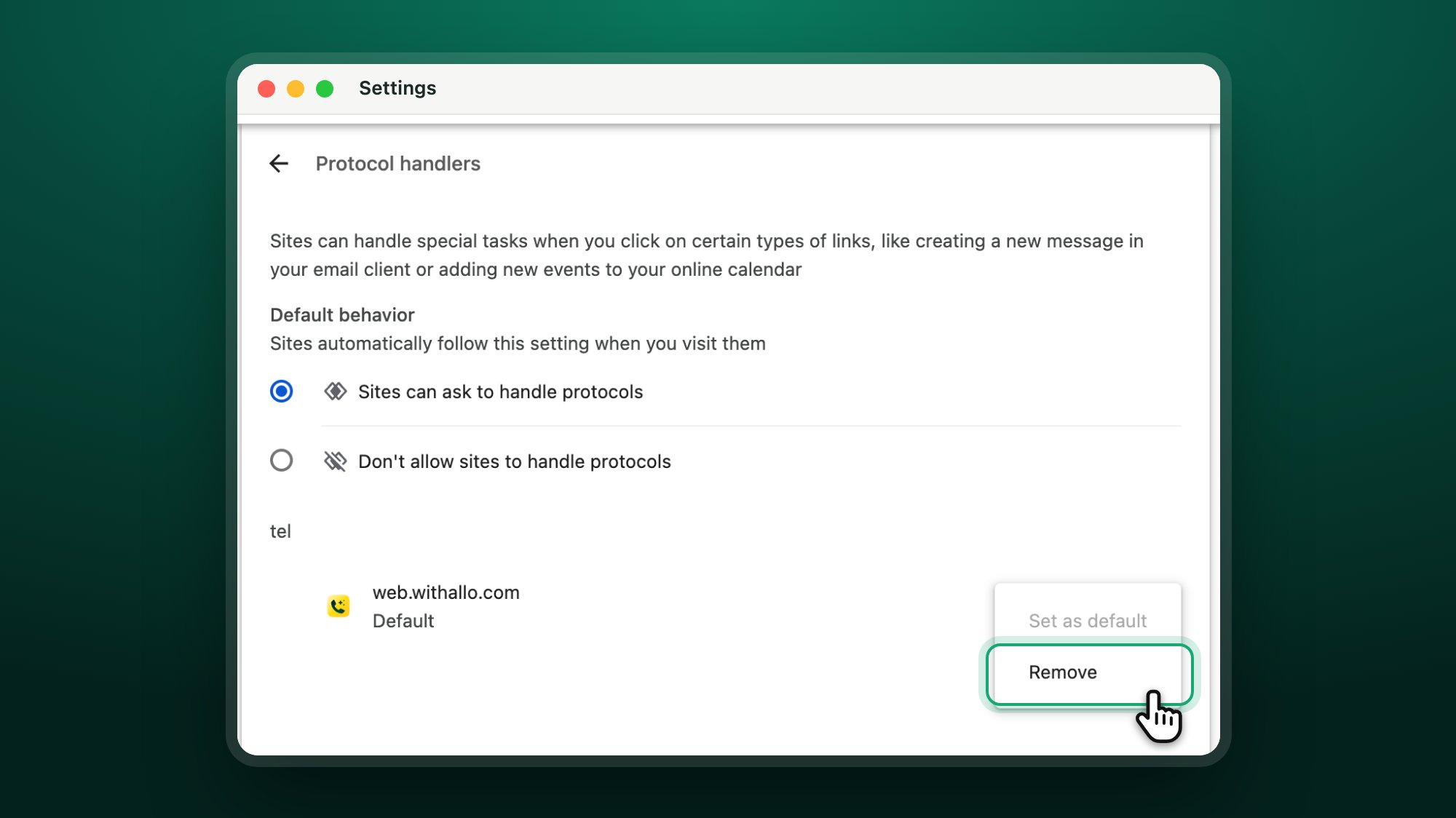
Go to Settings > Profile in the Allo web app and turn off Use Allo for phone links. Phone links in this browser then open the way they did before. You can also remove Allo in Chrome. Go tochrome://settings/handlers (Protocol handlers). Under tel, click the three dots next to web.withallo.com, then click Remove.
Troubleshooting
The phone number is not a link
The phone number is not a link
Phone links work only when the website shows the number as a link. A number written as plain text does not start a call when you click it.Copy the number into the Allo dialer, or install the Allo Chrome Extension. The extension adds a call button next to phone numbers on web pages, including plain text numbers.
Another app opens instead of Allo (FaceTime, Teams, Skype)
Another app opens instead of Allo (FaceTime, Teams, Skype)
Your browser still sends phone links to another app.
- In the Allo web app, go to Settings > Profile and check that Use Allo for phone links is on.
- Turn it off and on again, then click Allow in the browser prompt.
- In Chrome, go to
chrome://settings/handlers. Under tel, web.withallo.com should show Default. If it does not, click the three dots next to it, then Set as default.
I closed or blocked the prompt
I closed or blocked the prompt
Go to Settings > Profile in the Allo web app, turn Use Allo for phone links off and on again, then click Allow in the prompt.If no prompt appears, go to
chrome://settings/handlers in Chrome and check that Sites can ask to handle protocols is selected. Then turn the switch in Allo off and on again.The switch in Allo shows as on even when the browser did not allow it. Test with a phone link to be sure.I do not see Use Allo for phone links
I do not see Use Allo for phone links
The setting appears only in the Allo web app, in Chrome or Edge. Open web.withallo.com in one of these browsers and go to Settings > Profile.
Related pages

Set Allo as your default calling app
Make calls from other apps go through Allo on your phone

Click-to-call number
Choose which number your outbound calls use

Chrome Extension
Call any phone number you see on a web page

Contact support
Get help from the Allo team