

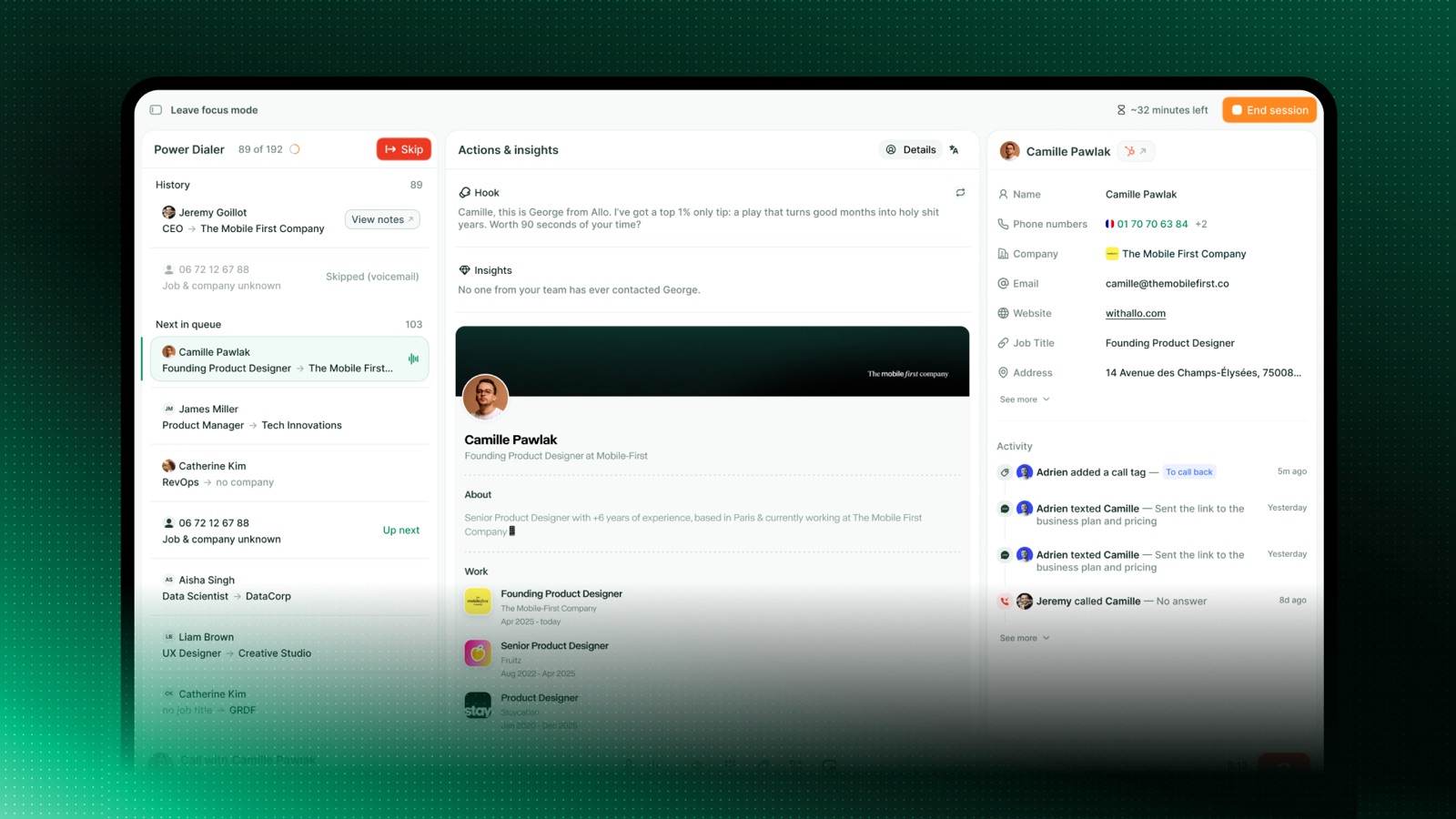
The Power Dialer turns a list of contacts into a single, uninterrupted calling session. Instead of looking up each number, copying it, and dialing by hand, you build a queue once and Allo moves you from one call to the next automatically.
How it works
1
Build a queue
Add the numbers you want to call. You can add contacts from your call list, paste numbers in bulk, or push a list from your CRM.
2
Start dialing
Open the queue and press start. Allo dials the first number right away.
3
Talk, then move on
When a call ends, Allo automatically queues up the next contact. Tag the call, leave a note, and move forward without dialing anything by hand.
4
Work the whole list
Allo keeps going until the queue is empty. Pause any time, and pick up where you left off later.
Each person has at most one active queue at a time. Building a new queue from scratch replaces the current one.
Build your queue from everywhere
There are several ways to add numbers, and you can mix them in the same queue.
From the call list
Import one or more contacts directly from your Allo CRM or your Calls view.

Upload CSV
Upload a CSV of up to 25,000 contacts to add them in one sweep.

From your CRM
Using our Chrome Extension, import numbers from virtually any web page.
With the MCP or API
Connect Claude to Allo and ask it to import contacts with a natural language prompt.
Queue limits
- Queue size — a queue holds up to 25,000 numbers in total.
- CSV upload — each import takes one CSV with up to 25,000 rows, 200 columns and a file size of up to 10 MB. The rows count toward the queue’s 25,000, so a queue that already holds numbers takes a smaller CSV.
Run a session
Open your queue from web.withallo.com or the desktop app and press Start. During a session you can:- See what’s next: the current contact and the upcoming ones are always visible.
- Pause and resume: stop between calls whenever you need a break, then continue from the same spot.
- Skip a contact: jump past a number without calling it.
- Tag and take notes: apply call tags and write notes between calls, before the next one starts.
Manage a queue
A queue is editable while you build it and between calls.- Reorder: move high-priority contacts to the top.
- Remove a contact: drop a single number you no longer want to call.
- Clear the rest: remove every contact you haven’t reached yet, while keeping the ones you’ve already called.
- Reset: discard the queue entirely and start fresh.
Auto-skip voicemails and voicemail drop
Two settings decide what the Power Dialer does when a call reaches a voicemail. Both live in the Edit queue modal: click the edit icon to the right of the queue name to open it. Both settings belong to the queue you are editing. Another queue can be set up differently.How to turn on auto-skip voicemails
Auto-skip voicemails moves you to the next number as soon as a call lands on a voicemail, instead of leaving you to listen to the greeting.1
Open Edit queue
Click the edit icon to the right of the queue name.
2
Turn on Auto-skip voicemails
Save the queue. From the next call on, voicemails are skipped for this queue.
How to set up voicemail drop
Voicemail drop leaves a message you recorded in advance when a call reaches a voicemail, so every contact hears the same message and you never record it twice. Voicemail drop needs auto-skip voicemails. Turn on auto-skip first, then turn on voicemail drop in the same modal. Allo then asks for the message to leave. You have two options:- Record it now: record your message with your microphone, straight from the modal.
- Upload a file: use an audio file you already have.
Tips for a productive session
Filter before you build. A focused list, one segment or one campaign, beats a giant unsorted queue. Use CRM filters to pull exactly the contacts you want. Turn on Do not disturb. Block inbound calls during a session so nothing breaks your rhythm. Tag as you go. Apply a call tag right after each call while it’s fresh. Your analytics stay clean and you don’t have to revisit calls later. Take short breaks. Pause between calls rather than abandoning the queue. Your progress is saved either way.Troubleshooting
I don't see the Power Dialer
I don't see the Power Dialer
The Power Dialer is an add-on. Also make sure you’re on the latest version of the Allo app. If you see it on the web application but not your desktop, you might need to update Allo.
I can't turn on voicemail drop
I can't turn on voicemail drop
Voicemail drop depends on auto-skip voicemails. Open Edit queue, turn on auto-skip voicemails, then turn on voicemail drop and add your recording.
A number won't add to my queue
A number won't add to my queue
Check that the number is in a valid format with a country code (for example +1 415 555 0142). Numbers Allo can’t recognize as dialable are skipped when you add a list in bulk.
My CSV won't upload or my queue is full
My CSV won't upload or my queue is full
A CSV import is limited to 25,000 rows, 200 columns and 10 MB. A queue holds 25,000 numbers in total, so an import that would go past that is blocked: a queue that already holds 10,000 numbers takes a CSV of up to 15,000 rows. Remove contacts you no longer need, or reset the queue, to make room. If your file is over 10 MB, remove the columns you don’t need or split it into several files.
Related

Call tags
Qualify every call as you work through the queue

Call recordings
Every call in a session is recorded and transcribed

Team analytics
Measure connect rates and outcomes across your sessions

Power Dialer API
Build and manage queues programmatically