

Setup for team administrators
Configure Allo for your sales team, support team, or entire company. This guide walks you through the complete setup process.Initial setup
1
Sign your quote (if applicable)
If you received a quote from the Allo team, sign it first. This activates your account with the correct number of seats.Contact sales for quotes:
Email [email protected] or message us on WhatsApp
If you don’t have a quote, you can start directly and add team members later through in-app billing.
Email [email protected] or message us on WhatsApp
2
Create your admin account
On mobile:
- Download “Allo” app (iPhone or Android)
- Tap “Log in”
- Use your email address (recommended for first login)
- Go to web.withallo.com
- Log in with your email address
3
Choose your admin number
Select a number even if you won’t use it directly. You need a number to access team configuration settings.Tip:
Choose a general company number that can serve as the main line.
Choose a general company number that can serve as the main line.
4
Accept permissions
Grant microphone and notification access. You can skip contacts sync if preferred.
5
Access desktop apps
Download for your team:
- Mac: Download
- Windows: Download
- Web: web.withallo.com
Desktop and web apps require Business plan.
Invite team members
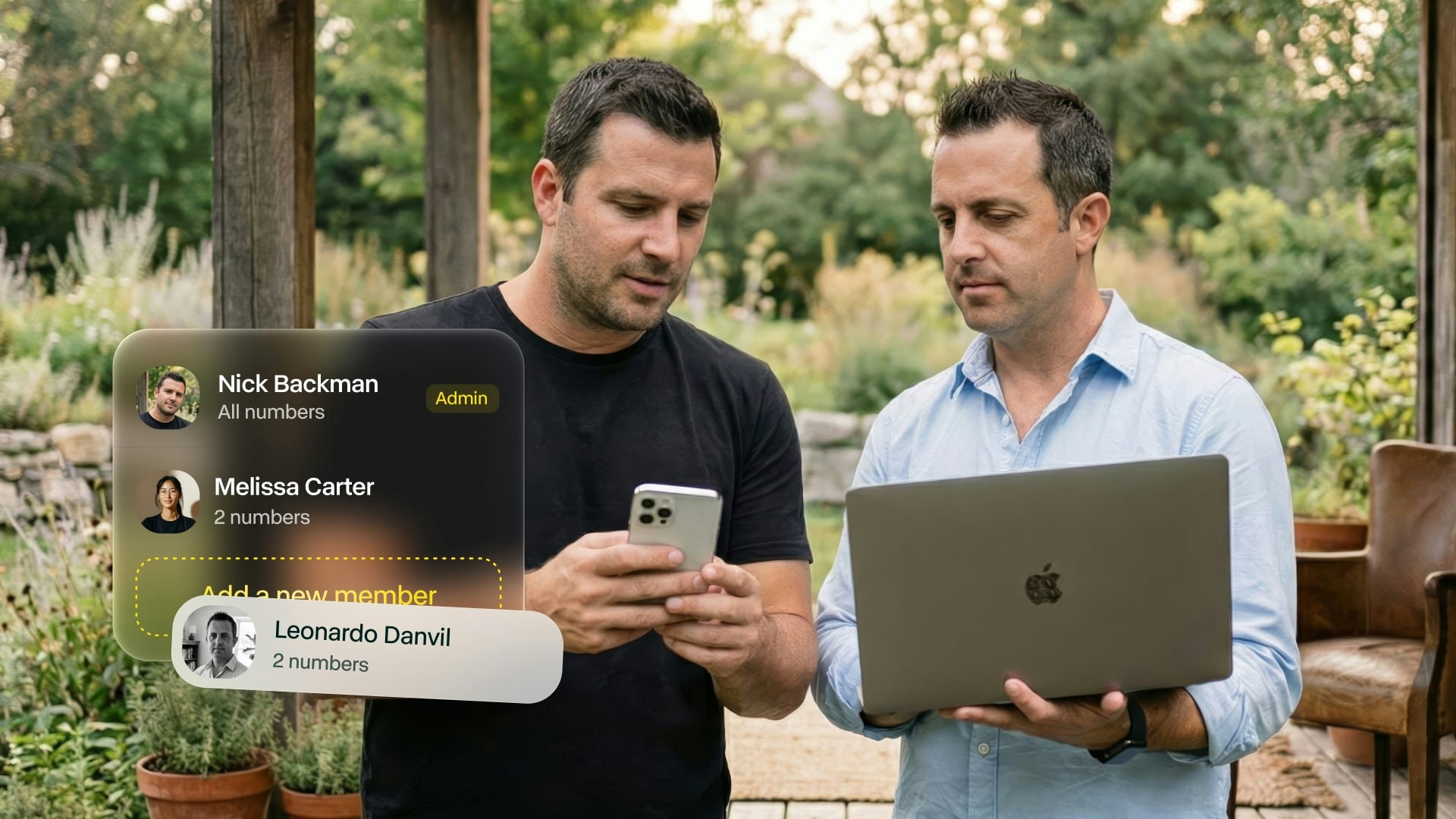
From mobile app
1
Open team management
Go to Settings (bottom right) > “Manage my team”
2
Invite member
Tap “Invite a member” > Enter team member’s email address
3
Send invitation
Tap Send. They’ll receive an email invitation immediately.
From desktop app
1
Navigate to billing
Go to Settings > Billing
2
Add seats
Click “Add a seat” > Enter email address
3
Confirm
Review cost per seat and confirm
- Team member receives invitation email
- They create their account using that email
- They choose their own number
- They get full access immediately
Configure team settings
CRM integrations
Connect your team’s CRM for automatic call logging.
HubSpot
Click-to-call, automatic logging, two-way sync

Salesforce
Call tracking and contact sync

Attio
Two-way sync with automatic notes

Odoo
Contact recognition and call logging
Configure integrations at the account level. All team members’ calls sync automatically. View all CRM integrations
Business hours
Set when your team is available. Setup:- Settings > Business hours
- Tap “Activate business hours”
- Configure each day (toggle on, set time ranges)
- Choose what happens outside hours
- Send to voicemail
- Forward to on-call number
- Play custom announcement
- Route to AI Receptionist
Call routing
Define how calls reach your team.Business hours, the phone menu, ringing and missed call handling can all be built in one place: a Call flow, on the line’s Call flow section. When a line has a flow, the flow decides what happens to calls and the four separate sections step aside. See call flows.
- Simultaneous
- Cascade
- AI Receptionist
Ring everyone at onceAll team members ring simultaneously. First to answer gets the call.Best for:
- Small teams (2-5 people)
- Urgent response needed
- Customer support lines
Team features setup
Performance dashboard (Business plan)
Monitor team call activity and performance. Available metrics:- Total calls per team member
- Call duration averages
- Answer rate
- Missed calls
- Response time
- Call volume trends
Desktop app > Dashboard tab Learn about analytics
Call monitoring (Business plan)
Listen to team calls for training and quality assurance. What you can do:- Review call recordings
- Read transcripts
- View AI summaries
- Leave comments for coaching
Desktop app > select team member > view their calls
Call monitoring is post-call only. Real-time monitoring coming soon.
Shared contacts
Enable contact sharing across your team. Setup:- Connect CRM (HubSpot, Salesforce, etc.)
- All CRM contacts import to Allo
- Team members see shared contacts
- Call history visible to all
Use Google Contacts integration for simple contact sharing. Google Contacts integration
Troubleshooting
Team member didn't receive invitation
Team member didn't receive invitation
Check:
- Email address is correct
- Check their spam folder
- Verify invitation was sent
Can't add more team members
Can't add more team members
Likely causes:
- Reached seat limit on quote
- Payment method needs updating
- Subscription issue
Calls not routing correctly
Calls not routing correctly
Check:
- Routing rules are configured
- Team members are online
- Business hours are set correctly
- IVR menu is active (if using)
CRM not syncing for all team members
CRM not syncing for all team members
Verify:
- Integration is connected at account level
- Each team member has CRM access
- Contacts exist in CRM
- Internet connection during calls
Need help?

Team management
Complete team features guide

Contact support
Get help from our team

Book demo
Schedule a call with our team

View pricing
Team pricing and features