

How to connect
1
Open integrations
Go to web.withallo.com and navigate to Settings > Integrations.
2
Connect Salesforce
Find Salesforce in the list and click Connect.
3
Authorize
You’ll be redirected to Salesforce. Sign in if needed, then grant Allo all requested permissions.
4
Done
Once authorized, you’re redirected back to Allo. Your integration is now active.
What syncs
From Salesforce to Allo:- Contacts
- Leads
- Accounts (as companies)
- Opportunities (as deals)
- Contacts created or updated in Allo are pushed back to Salesforce
How calls are synced
After each call, Allo creates a task on the matching Salesforce lead or contact with the call summary and a link to the recording.How SMS are synced
SMS conversations are synced as a single task on the matching lead or contact. The task is updated each time a new message is sent or received, keeping the full conversation thread in one place.Click-to-call
Click on any phone number in Salesforce to start a call through Allo. You can also set up the Allo Dialer directly inside Salesforce.Using the Allo Dialer in Salesforce
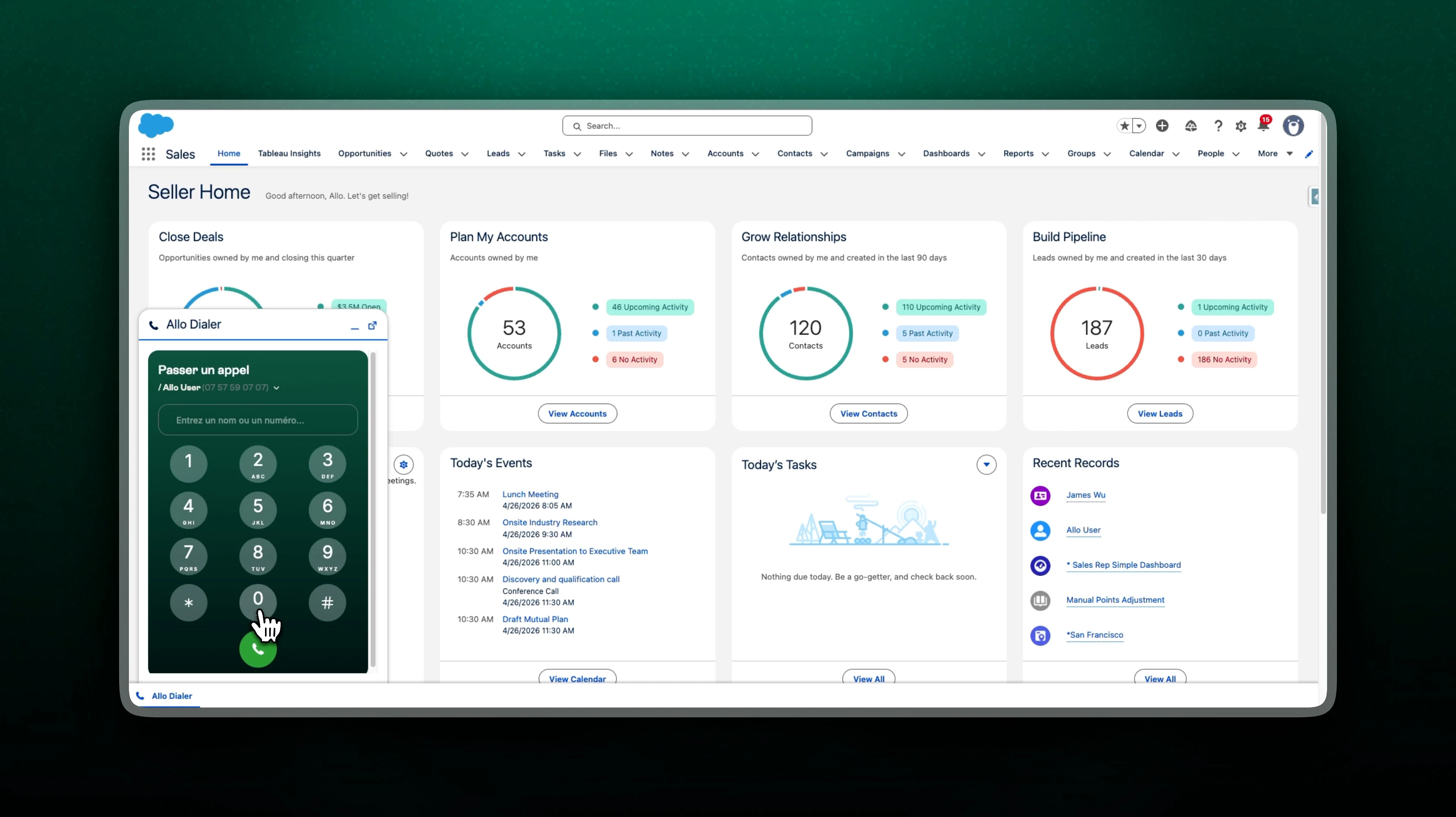
Allo Dialer setup in Salesforce
Allo Dialer setup in Salesforce
Requires System Administrator permissions in Salesforce before proceeding.
1
Add Allo dialer CTI
- Log in to web.withallo.com and go to Settings > Integrations > Salesforce.
- Click Add Allo dialer CTI. You’ll be redirected to Salesforce.
- Select Install for Admins Only (recommended) or Install for All Users.
- Click Install, approve third-party access, and wait for the “Installation Complete” message.
2
Add the Dialer to the Utility Bar
- Click the gear icon in the top right and select Setup.
- In the Quick Find box, type App Manager and select it.
- Find the app your team uses (e.g., Sales or Service Console) with a Lightning Developer Name.
- Click the dropdown arrow at the end of the row and select Edit.
- In the left menu, click Utility Items (Desktop Only).
- Click Add Utility Item and search for Open CTI Softphone.
- Set the following properties:
- Label: Allo Dialer
- Panel Width: 600
- Panel Height: 400
- Click Save.
3
Assign Users to the Call Center
- Go back to Setup.
- In the Quick Find box, type Call Centers and select it.
- Click the name of the installed call center (e.g., Allo CTI).
- Click Manage Call Center Users > Add More Users.
- Search for the users to enable, check the box next to their names, and click Add to Call Center.
Troubleshooting
Check the sync status of any call from the call list on web.withallo.com — each call has an integration indicator showing its sync state.I cannot connect my integration
I cannot connect my integration
Only admins and managers of an Allo workspace can connect integrations. If you don’t see the option, ask your workspace admin or manager to set it up.
Call not synced to my integration
Call not synced to my integration
Check the integration indicator on the call in the web app. The error will be one of these:
- Contact not found — The contact doesn’t exist in your CRM. By default, Allo only syncs calls to existing contacts. To auto-create contacts, go to your integration settings and enable Create lead for unknown calls.
- Contact deleted — The contact was removed from your CRM. Allo is additive and won’t sync calls for deleted contacts. Re-create the contact in your CRM, then retry the sync.
- Integration disconnected — Your OAuth token or API key was revoked on the integration side. Allo still appears connected but requests fail. Disconnect and reconnect the integration in Allo.
- Call pending (spinner icon) — Allo is still matching the contact. This can take up to 24 hours before being marked as an error. Once the contact exists in your CRM, you can retry manually.
- Contact is a favorite — By default, calls with a favorite contact are not synced to your CRM. Remove the contact from your favorites if you want these calls to sync.
Contacts not syncing
Contacts not syncing
The first sync can take up to 15 minutes for large contact databases. After that, contacts sync incrementally every 10 minutes — not in real time.Allo only syncs contacts that have at least one phone number in a native phone number field. Contacts without a phone number will not appear in Allo.If contacts still don’t appear after 15 minutes, disconnect and reconnect the integration.
SMS not synced
SMS not synced
If your SMS conversations are not appearing, verify the integration is connected in Settings > Integrations and check the integration indicator on the call list at web.withallo.com for error details.If SMS still don’t appear, disconnect and reconnect the integration.
Duplicate contacts
Duplicate contacts
Allo mirrors your integration exactly. If your CRM has duplicate contacts with the same phone number, they appear as separate contacts in Allo.Clean up duplicates in your CRM — Allo will reflect the change on the next sync.
Call activity created by the wrong user
Call activity created by the wrong user
By default, Salesforce records the Created By of the call activity (Task) as the user who connected the Allo integration — not the agent who actually made the call. This is a Salesforce platform behavior: the Created By audit field is always set to the user the integration authenticates as.Allo already sets Assigned To (the activity owner) to the agent who made the call, as long as that agent exists in Salesforce as an active Standard user with a matching email address.To also have Created By reflect the agent, a Salesforce admin must enable the Set Audit Fields upon Record Creation permission:
1
Enable the feature org-wide
- In Salesforce, go to Setup > User Interface.
- Check Enable “Set Audit Fields upon Record Creation” and “Update Records with Inactive Owners” User Permissions.
- Click Save.
2
Grant the permission to the connected user
- Go to Setup > Permission Sets and create or edit a permission set.
- Under System Permissions, enable Set Audit Fields upon Record Creation and save.
- Assign the permission set to the user who connected the Allo integration.
This only affects calls created after the permission is enabled — existing activities keep their original Created By. If the agent has no matching active Standard user in Salesforce, both Created By and Assigned To fall back to the user who connected the integration.
Call synced to the wrong contact
Call synced to the wrong contact
When multiple contacts share the same phone number, Allo syncs the call to all matching contacts. Before reporting a missing sync, check all contacts that share that phone number — the call may already be synced to another one. Click the integration indicator on any call in the web app to see exactly which contacts it was synced to.