> ## Documentation Index
> Fetch the complete documentation index at: https://help.withallo.com/llms.txt
> Use this file to discover all available pages before exploring further.
# Salesforce
> Automatically sync call recordings and summaries to your Salesforce CRM
## How to connect
Go to [**web.withallo.com**](https://web.withallo.com) and navigate to **Settings** > **Integrations**.
Find **Salesforce** in the list and click **Connect**.
You'll be redirected to Salesforce. Sign in if needed, then grant Allo all requested permissions.
Once authorized, you're redirected back to Allo. Your integration is now active.
## What syncs
**From Salesforce to Allo:**
* Contacts
* Leads
* Accounts (as companies)
* Opportunities (as deals)
**From Allo to Salesforce:**
* Contacts created or updated in Allo are pushed back to Salesforce
**Sync direction:** Two-way — changes in either system are reflected in the other.
## How calls are synced
After each call, Allo creates a task on the matching Salesforce lead or contact with the call summary and a link to the recording.
## How SMS are synced
SMS conversations are synced as a single task on the matching lead or contact. The task is updated each time a new message is sent or received, keeping the full conversation thread in one place.
## Click-to-call
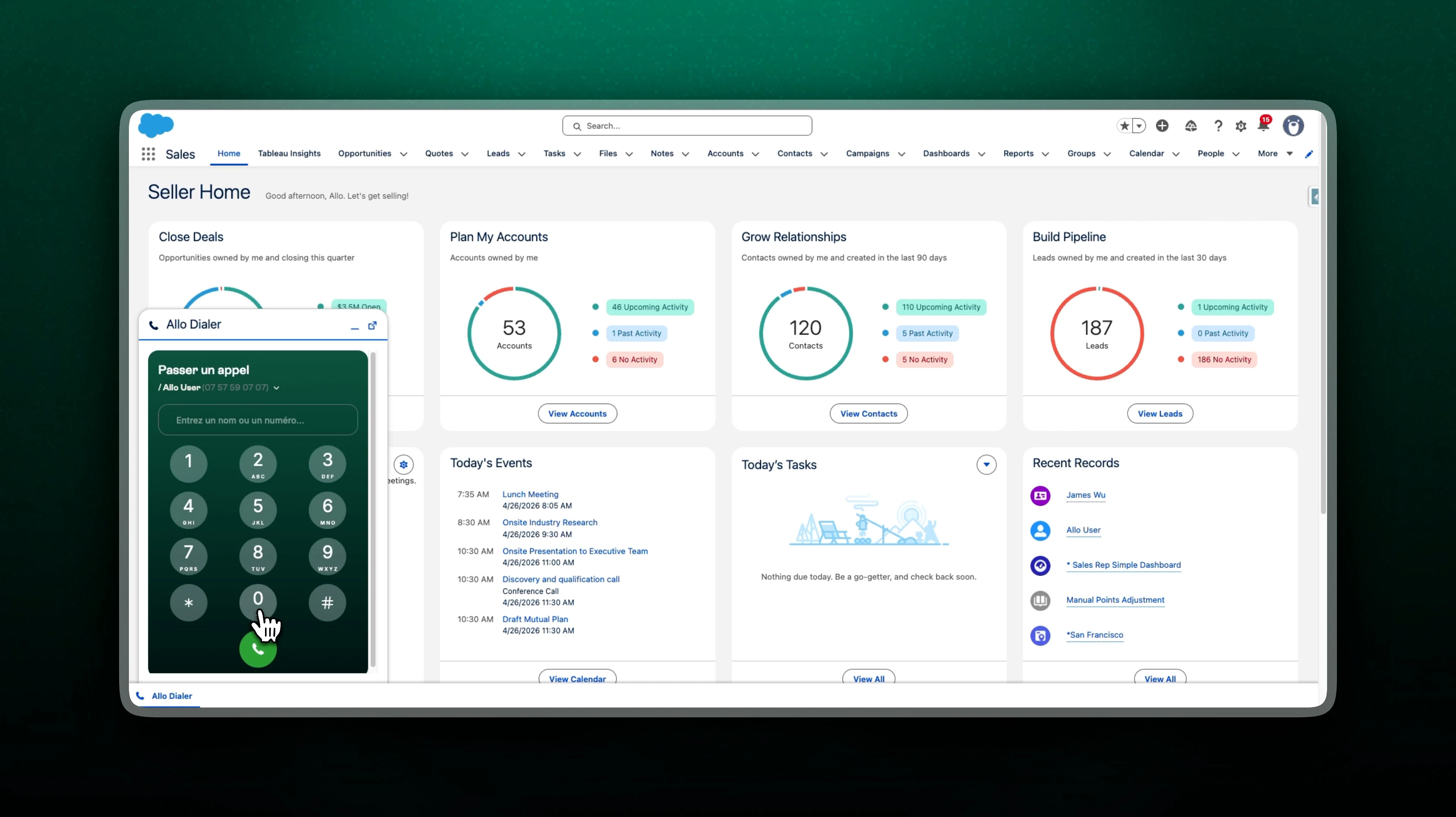
Click on any phone number in Salesforce to start a call through Allo. You can also set up the **Allo Dialer** directly inside Salesforce.
### Using the Allo Dialer in Salesforce
Requires **System Administrator** permissions in Salesforce before proceeding.
1. Log in to [**web.withallo.com**](https://web.withallo.com) and go to **Settings** > **Integrations** > **Salesforce**.
2. Click **Add Allo dialer CTI**. You'll be redirected to Salesforce.
3. Select **Install for Admins Only** (recommended) or **Install for All Users**.
4. Click **Install**, approve third-party access, and wait for the "Installation Complete" message.
1. Click the gear icon in the top right and select **Setup**.
2. In the Quick Find box, type **App Manager** and select it.
3. Find the app your team uses (e.g., **Sales** or **Service Console**) with a Lightning Developer Name.
4. Click the dropdown arrow at the end of the row and select **Edit**.
5. In the left menu, click **Utility Items (Desktop Only)**.
6. Click **Add Utility Item** and search for **Open CTI Softphone**.
7. Set the following properties:
* **Label:** Allo Dialer
* **Panel Width:** 600
* **Panel Height:** 400
8. Click **Save**.
1. Go back to **Setup**.
2. In the Quick Find box, type **Call Centers** and select it.
3. Click the name of the installed call center (e.g., **Allo CTI**).
4. Click **Manage Call Center Users** > **Add More Users**.
5. Search for the users to enable, check the box next to their names, and click **Add to Call Center**.
Users may need to refresh their browser to see the dialer in the utility bar.
## Troubleshooting
Check the sync status of any call from the **call list on [web.withallo.com](https://web.withallo.com)** — each call has an integration indicator showing its sync state.
Only **admins** and **managers** of an Allo workspace can connect integrations. If you don't see the option, ask your workspace admin or manager to set it up.
Check the integration indicator on the call in the web app. The error will be one of these:
* **Contact not found** — The contact doesn't exist in your CRM. By default, Allo only syncs calls to existing contacts. To auto-create contacts, go to your integration settings and enable **Create lead for unknown calls**.
* **Contact deleted** — The contact was removed from your CRM. Allo is additive and won't sync calls for deleted contacts. Re-create the contact in your CRM, then retry the sync.
* **Integration disconnected** — Your OAuth token or API key was revoked on the integration side. Allo still appears connected but requests fail. Disconnect and reconnect the integration in Allo.
* **Call pending (spinner icon)** — Allo is still matching the contact. This can take up to 24 hours before being marked as an error. Once the contact exists in your CRM, you can retry manually.
The first sync can take up to **15 minutes** for large contact databases. After that, contacts sync incrementally every **10 minutes** — not in real time.
Allo only syncs contacts that have at least one phone number in a native phone number field. Contacts without a phone number will not appear in Allo.
If contacts still don't appear after 15 minutes, disconnect and reconnect the integration.
If your SMS conversations are not appearing, verify the integration is connected in **Settings** > **Integrations** and check the integration indicator on the call list at [web.withallo.com](https://web.withallo.com) for error details.
If SMS still don't appear, disconnect and reconnect the integration.
Allo mirrors your integration exactly. If your CRM has duplicate contacts with the same phone number, they appear as separate contacts in Allo.
Clean up duplicates in your CRM — Allo will reflect the change on the next sync.
Call tags are stored in a custom field called **Allo Tags** on the Salesforce **Task** (Activity) object, automatically created by Allo on first sync. Field-level security is granted only to the profile of the user who connected the integration — other users won't see the field until an admin enables visibility.
A Salesforce admin needs to:
1. In Salesforce, go to **Setup** > **Object Manager** > **Task**.
2. Click **Fields & Relationships** and open **Allo Tags**.
3. Click **Set Field-Level Security** and enable **Visible** for every profile that should see tags.
1. Still in the **Task** object, go to **Page Layouts**.
2. Open each layout used by your team and drag **Allo Tags** into the **Task Detail** section.
3. Click **Save**.
Users may need to refresh the page to see the field.
By default, Salesforce records the **Created By** of the call activity (Task) as the user who connected the Allo integration — not the agent who actually made the call. This is a Salesforce platform behavior: the **Created By** audit field is always set to the user the integration authenticates as.
Allo already sets **Assigned To** (the activity owner) to the agent who made the call, as long as that agent exists in Salesforce as an **active Standard user with a matching email address**.
To also have **Created By** reflect the agent, a Salesforce admin must enable the **Set Audit Fields upon Record Creation** permission:
1. In Salesforce, go to **Setup** > **User Interface**.
2. Check **Enable "Set Audit Fields upon Record Creation" and "Update Records with Inactive Owners" User Permissions**.
3. Click **Save**.
1. Go to **Setup** > **Permission Sets** and create or edit a permission set.
2. Under **System Permissions**, enable **Set Audit Fields upon Record Creation** and save.
3. Assign the permission set to the user who connected the Allo integration.
This only affects calls created **after** the permission is enabled — existing activities keep their original Created By. If the agent has no matching active Standard user in Salesforce, both **Created By** and **Assigned To** fall back to the user who connected the integration.
When multiple contacts share the same phone number, Allo syncs the call to all matching contacts. Before reporting a missing sync, check all contacts that share that phone number — the call may already be synced to another one. Click the integration indicator on any call in the web app to see exactly which contacts it was synced to.