> ## Documentation Index
> Fetch the complete documentation index at: https://help.withallo.com/llms.txt
> Use this file to discover all available pages before exploring further.
# Team Member
> Join your team on Allo
## Joining a team that uses Allo
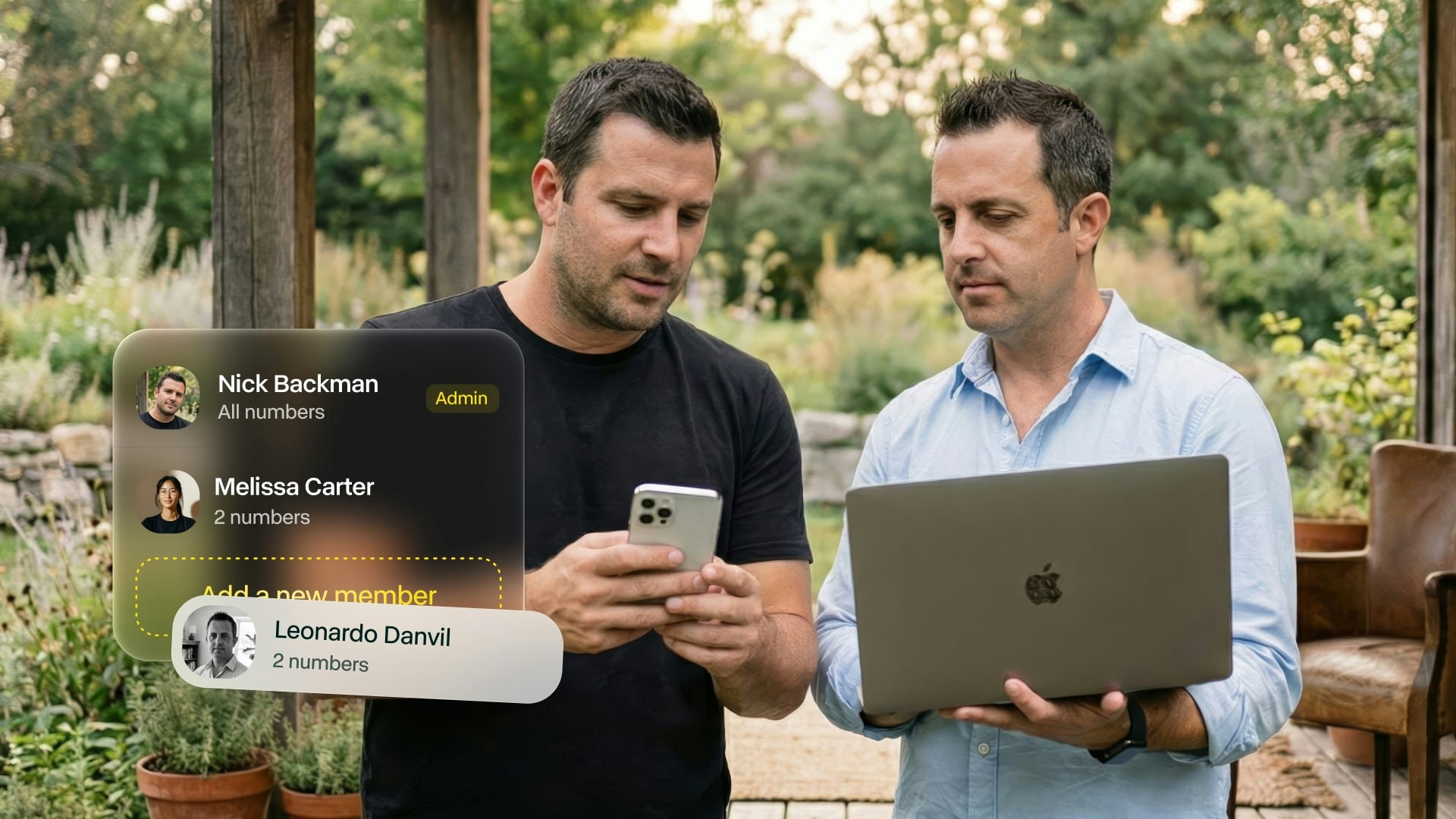
Your team admin has invited you to Allo. Follow these steps to get set up and start taking calls.
 ## Setup steps
Your team admin will send you an email invitation to join Allo.
**Subject line:** "You're invited to join \[Company] on Allo"
**Didn't receive it?**\
Check spam folder or ask your admin to resend.
**On mobile:**
* iPhone: [Download from App Store](https://withallo.com/download)
* Android: [Download from Play Store](https://withallo.com/download)
**On desktop:**
* Mac: [Download](https://withallo.com/download)
* Windows: [Download](https://withallo.com/download)
* Web: [web.withallo.com](https://web.withallo.com)
Desktop and web access require Business plan.
**On mobile:**
1. Open Allo app
2. Tap "Join a team"
3. Log in with the email address from the invitation
**On desktop:**
1. Go to [web.withallo.com](https://web.withallo.com)
2. Log in with your invitation email address
Use the exact email address from your invitation. Using a different email creates a new separate account.
Select a number from available options. This becomes your direct line.
**Ask your admin:**\
Which number you should choose based on team setup.
Accept permissions when prompted:
**Required:**
* Microphone (to make calls)
* Notifications (call alerts)
**Optional:**
* Contacts sync (recommended)
You can change these later in phone settings.
Ask your admin to connect your company CRM if your team uses one:
* HubSpot
* Salesforce
* Attio
* Odoo
* Others
[View integration guides](/en/integrations/overview)
Personalize your Allo experience:
**Essential:**
* Set your business hours
* Customize voicemail message
* Enable email summaries
**Optional:**
* Connect your personal number
* Set up call forwarding
* Configure notifications
***
## Using Allo as a team member
### Make and receive calls
**Your Allo number:**\
Use your assigned number for calls. Recipients see this number when you call.
**Shared team number:**\
If your team shares a number, you'll ring when calls come in. First to answer gets the call.
**All calls are:**
* Recorded automatically
* Transcribed to text
* Summarized by AI
* Synced to your CRM (if connected)
### Access call history
**View your calls:**
* Go to Inbox tab
* See all your calls
* Listen to recordings
* Read transcripts and summaries
**View team calls:**\
Depending on permissions set by admin, you may see other team members' calls for collaboration.
### Team features
**What you can do:**
* Transfer calls to team members
* Access shared contacts from CRM
* Collaborate on call notes
* View team availability
* Use shared IVR menu
* Route calls to colleagues
**Ask your admin about:**
* Your specific permissions
* Team call routing rules
* Shared number usage
***
## Personalize your setup
### Business hours
Set when you're available for calls.
**Setup:**
1. Settings > Business hours
2. Activate business hours
3. Set schedule for each day
4. Choose what happens when unavailable
**Options when unavailable:**
* Voicemail
* Forward to team member
* Send to main line
[Business hours guide](/en/features/business-hours)
### Voicemail greeting
Customize your voicemail message.
**Setup:**
1. Settings > Voicemail
2. Write your custom message
3. Choose voice type
4. Save and test
**Example message:**\
"Hi, you've reached \[Your Name] at \[Company]. I'm unable to take your call right now. Please leave a message and I'll get back to you soon."
[Voicemail customization](/en/features/voicemail)
### Email summaries
Get call summaries sent to your email.
**Setup:**
1. Settings > Profile
2. Add your work email
3. Summaries arrive after each call
**What's included:**
* Call recording link
* AI summary
* Transcript
* Caller information
### Notifications
Control how you're alerted about calls.
**Customize:**
1. Phone Settings > Allo > Notifications
2. Choose notification style
3. Set sounds and badges
4. Configure Do Not Disturb
***
## Common questions
Yes. Log in on mobile, desktop, and web simultaneously. Your calls and settings sync across all devices.
**Desktop access:**\
Requires team to be on Business plan.
Your admin can access your call recordings for training and quality purposes. This is standard for team accounts.
**Ask your admin:**\
About your team's call monitoring policy.
Yes. You can set your own:
* Business hours
* Voicemail greeting
* Email preferences
* Personal number forwarding
**Team settings:**\
Some settings like CRM integration and routing are set by admin for everyone.
If you leave the company:
* Admin removes you from team
* Your access stops immediately
* Your call history is preserved for the team
* Your personal settings are deleted
**Your own calls:**\
Contact admin if you need copies of recordings.
Yes, but use a different email address. Your team account email is tied to your team membership.
**Use cases:**
* Personal freelance work
* Side business
* Separate company
***
## Troubleshooting
**Check:**
* Spam/junk folder
* Promotions tab (Gmail)
* Correct email address with admin
**Solution:**\
Ask admin to resend invitation
**Verify:**
* Using exact email from invitation
* No typos in email address
* Tapping "Join a team" not "Log in"
**Solution:**\
Contact admin or support for help
**Check:**
* You're logged into team account (not personal)
* Admin has granted necessary permissions
* Team is on correct plan (Business for some features)
**Ask admin:**\
About your role and permissions
**Verify:**
* Integration is connected
* You have CRM access
* Contact exists in CRM
* Internet connection during call
**Solution:**\
Ask admin to check integration settings
**Check:**
* Your status is available (not busy)
* Business hours are correct
* Routing rules set by admin
**Ask admin:**\
How calls should route to you
***
## Need help?
Your team admin is your first resource for questions about team setup and usage
Quick answers to common questions
Get help from Allo support team
## Setup steps
Your team admin will send you an email invitation to join Allo.
**Subject line:** "You're invited to join \[Company] on Allo"
**Didn't receive it?**\
Check spam folder or ask your admin to resend.
**On mobile:**
* iPhone: [Download from App Store](https://withallo.com/download)
* Android: [Download from Play Store](https://withallo.com/download)
**On desktop:**
* Mac: [Download](https://withallo.com/download)
* Windows: [Download](https://withallo.com/download)
* Web: [web.withallo.com](https://web.withallo.com)
Desktop and web access require Business plan.
**On mobile:**
1. Open Allo app
2. Tap "Join a team"
3. Log in with the email address from the invitation
**On desktop:**
1. Go to [web.withallo.com](https://web.withallo.com)
2. Log in with your invitation email address
Use the exact email address from your invitation. Using a different email creates a new separate account.
Select a number from available options. This becomes your direct line.
**Ask your admin:**\
Which number you should choose based on team setup.
Accept permissions when prompted:
**Required:**
* Microphone (to make calls)
* Notifications (call alerts)
**Optional:**
* Contacts sync (recommended)
You can change these later in phone settings.
Ask your admin to connect your company CRM if your team uses one:
* HubSpot
* Salesforce
* Attio
* Odoo
* Others
[View integration guides](/en/integrations/overview)
Personalize your Allo experience:
**Essential:**
* Set your business hours
* Customize voicemail message
* Enable email summaries
**Optional:**
* Connect your personal number
* Set up call forwarding
* Configure notifications
***
## Using Allo as a team member
### Make and receive calls
**Your Allo number:**\
Use your assigned number for calls. Recipients see this number when you call.
**Shared team number:**\
If your team shares a number, you'll ring when calls come in. First to answer gets the call.
**All calls are:**
* Recorded automatically
* Transcribed to text
* Summarized by AI
* Synced to your CRM (if connected)
### Access call history
**View your calls:**
* Go to Inbox tab
* See all your calls
* Listen to recordings
* Read transcripts and summaries
**View team calls:**\
Depending on permissions set by admin, you may see other team members' calls for collaboration.
### Team features
**What you can do:**
* Transfer calls to team members
* Access shared contacts from CRM
* Collaborate on call notes
* View team availability
* Use shared IVR menu
* Route calls to colleagues
**Ask your admin about:**
* Your specific permissions
* Team call routing rules
* Shared number usage
***
## Personalize your setup
### Business hours
Set when you're available for calls.
**Setup:**
1. Settings > Business hours
2. Activate business hours
3. Set schedule for each day
4. Choose what happens when unavailable
**Options when unavailable:**
* Voicemail
* Forward to team member
* Send to main line
[Business hours guide](/en/features/business-hours)
### Voicemail greeting
Customize your voicemail message.
**Setup:**
1. Settings > Voicemail
2. Write your custom message
3. Choose voice type
4. Save and test
**Example message:**\
"Hi, you've reached \[Your Name] at \[Company]. I'm unable to take your call right now. Please leave a message and I'll get back to you soon."
[Voicemail customization](/en/features/voicemail)
### Email summaries
Get call summaries sent to your email.
**Setup:**
1. Settings > Profile
2. Add your work email
3. Summaries arrive after each call
**What's included:**
* Call recording link
* AI summary
* Transcript
* Caller information
### Notifications
Control how you're alerted about calls.
**Customize:**
1. Phone Settings > Allo > Notifications
2. Choose notification style
3. Set sounds and badges
4. Configure Do Not Disturb
***
## Common questions
Yes. Log in on mobile, desktop, and web simultaneously. Your calls and settings sync across all devices.
**Desktop access:**\
Requires team to be on Business plan.
Your admin can access your call recordings for training and quality purposes. This is standard for team accounts.
**Ask your admin:**\
About your team's call monitoring policy.
Yes. You can set your own:
* Business hours
* Voicemail greeting
* Email preferences
* Personal number forwarding
**Team settings:**\
Some settings like CRM integration and routing are set by admin for everyone.
If you leave the company:
* Admin removes you from team
* Your access stops immediately
* Your call history is preserved for the team
* Your personal settings are deleted
**Your own calls:**\
Contact admin if you need copies of recordings.
Yes, but use a different email address. Your team account email is tied to your team membership.
**Use cases:**
* Personal freelance work
* Side business
* Separate company
***
## Troubleshooting
**Check:**
* Spam/junk folder
* Promotions tab (Gmail)
* Correct email address with admin
**Solution:**\
Ask admin to resend invitation
**Verify:**
* Using exact email from invitation
* No typos in email address
* Tapping "Join a team" not "Log in"
**Solution:**\
Contact admin or support for help
**Check:**
* You're logged into team account (not personal)
* Admin has granted necessary permissions
* Team is on correct plan (Business for some features)
**Ask admin:**\
About your role and permissions
**Verify:**
* Integration is connected
* You have CRM access
* Contact exists in CRM
* Internet connection during call
**Solution:**\
Ask admin to check integration settings
**Check:**
* Your status is available (not busy)
* Business hours are correct
* Routing rules set by admin
**Ask admin:**\
How calls should route to you
***
## Need help?
Your team admin is your first resource for questions about team setup and usage
Quick answers to common questions
Get help from Allo support team