> ## Documentation Index
> Fetch the complete documentation index at: https://help.withallo.com/llms.txt
> Use this file to discover all available pages before exploring further.
# Team Admin
> Set up Allo for your entire team
## Setup for team administrators
Configure Allo for your sales team, support team, or entire company. This guide walks you through the complete setup process.
***
## Initial setup
If you received a quote from the Allo team, sign it first. This activates your account with the correct number of seats.
If you don't have a quote, you can start directly and add team members later through in-app billing.
**Contact sales for quotes:**\
Email [sales@withallo.com](mailto:sales@withallo.com) or message us on WhatsApp
**On mobile:**
1. Download "Allo" app (iPhone or Android)
2. Tap "Log in"
3. Use your email address (recommended for first login)
**On desktop:**
1. Go to [web.withallo.com](https://web.withallo.com)
2. Log in with your email address
Use a company email that you'll keep long-term. This becomes your admin account.
Select a number even if you won't use it directly. You need a number to access team configuration settings.
**Tip:**\
Choose a general company number that can serve as the main line.
Grant microphone and notification access. You can skip contacts sync if preferred.
Download for your team:
* **Mac:** [Download](https://withallo.com/download)
* **Windows:** [Download](https://withallo.com/download)
* **Web:** [web.withallo.com](https://web.withallo.com)
Desktop and web apps require Business plan.
***
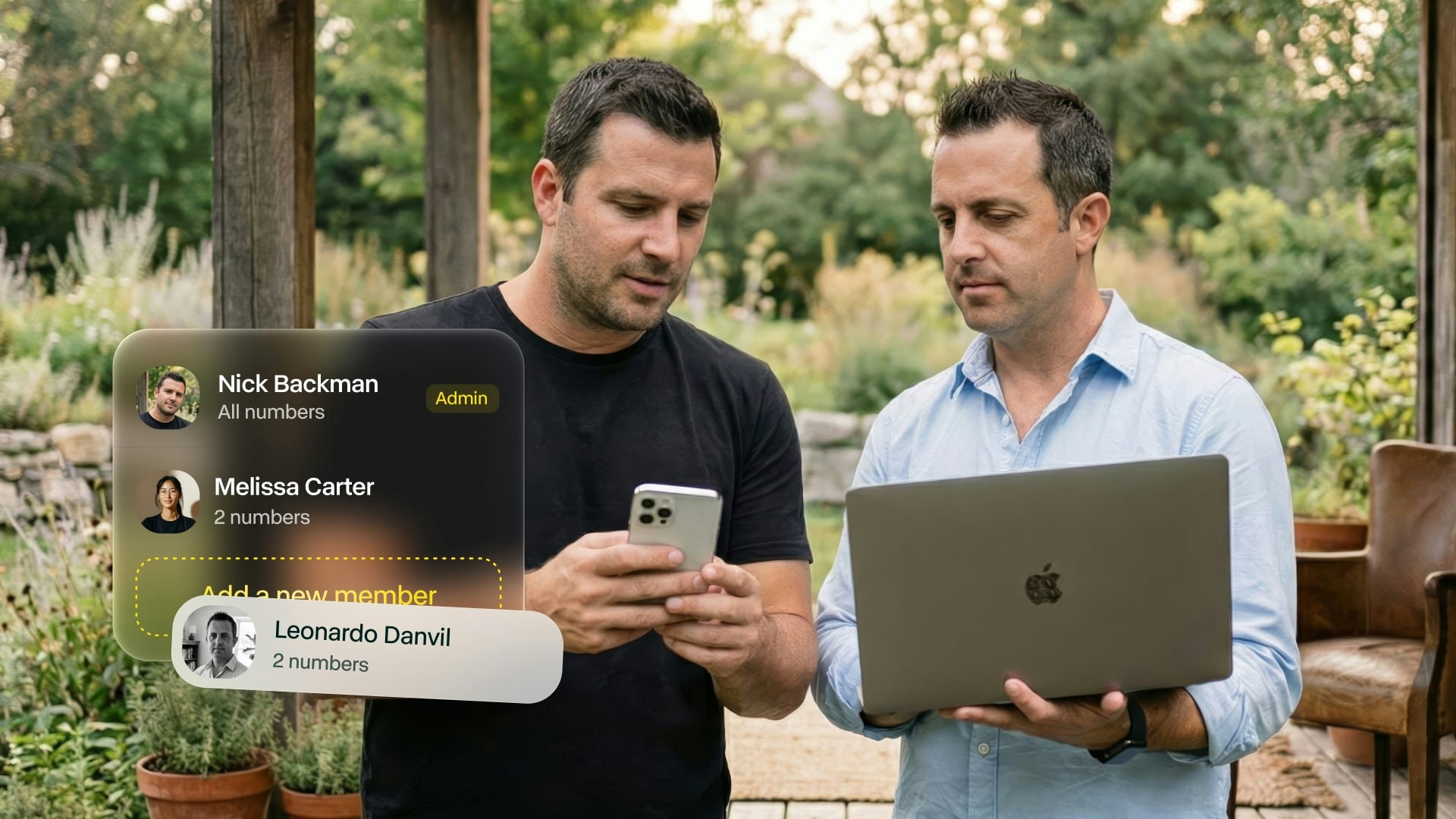
## Invite team members
 ### From mobile app
Go to Settings (bottom right) > "Manage my team"
Tap "Invite a member" > Enter team member's email address
Tap Send. They'll receive an email invitation immediately.
### From desktop app
Go to Settings > Billing
Click "Add a seat" > Enter email address
Review cost per seat and confirm
**What happens next:**
* Team member receives invitation email
* They create their account using that email
* They choose their own number
* They get full access immediately
[Detailed team management guide](/en/team/manage-members)
***
## Configure team settings
### CRM integrations
Connect your team's CRM for automatic call logging.
Click-to-call, automatic logging, two-way sync
Call tracking and contact sync
Two-way sync with automatic notes
Contact recognition and call logging
**Setup once, works for everyone:**\
Configure integrations at the account level. All team members' calls sync automatically.
[View all CRM integrations](/en/integrations/overview)
### Business hours
Set when your team is available.
**Setup:**
1. Settings > Business hours
2. Tap "Activate business hours"
3. Configure each day (toggle on, set time ranges)
4. Choose what happens outside hours
**Options outside hours:**
* Send to voicemail
* Forward to on-call number
* Play custom announcement
* Route to AI Receptionist (Business plan)
[Business hours guide](/en/features/business-hours)
### Call routing
Define how calls reach your team.
**Ring everyone at once**
All team members ring simultaneously. First to answer gets the call.
**Best for:**
* Small teams (2-5 people)
* Urgent response needed
* Customer support lines
**Ring sequentially**
Call rings team members one after another.
**Best for:**
* Priority-based routing
* Backup coverage
* Overflow handling
[Setup cascade routing](/en/features/call-routing)
**Let callers choose**
"Press 1 for Sales, 2 for Support"
**Best for:**
* Department routing
* Multiple teams
* Professional image
[Create IVR menu](/en/features/ivr)
**Intelligent routing**
AI asks questions and routes appropriately.
**Best for:**
* Complex routing rules
* After-hours coverage
* Qualifying calls
[Setup AI Receptionist](/en/features/virtual-receptionist)
***
## Team features setup
### Performance dashboard (Business plan)
Monitor team call activity and performance.
**Available metrics:**
* Total calls per team member
* Call duration averages
* Answer rate
* Missed calls
* Response time
* Call volume trends
**Access:**\
Desktop app > Dashboard tab
[Learn about analytics](/en/team/analytics)
### Call monitoring (Business plan)
Listen to team calls for training and quality assurance.
**What you can do:**
* Review call recordings
* Read transcripts
* View AI summaries
* Leave comments for coaching
**Access:**\
Desktop app > select team member > view their calls
Call monitoring is post-call only. Real-time monitoring coming soon.
[Call monitoring guide](/en/team/analytics#call-monitoring)
### Shared contacts
Enable contact sharing across your team.
**Setup:**
1. Connect CRM (HubSpot, Salesforce, etc.)
2. All CRM contacts import to Allo
3. Team members see shared contacts
4. Call history visible to all
**Alternative:**\
Use Google Contacts integration for simple contact sharing.
[Google Contacts integration](/en/integrations/google-contacts)
***
## Troubleshooting
**Check:**
* Email address is correct
* Check their spam folder
* Verify invitation was sent
**Solution:** Resend invitation from Settings > Manage my team
**Likely causes:**
* Reached seat limit on quote
* Payment method needs updating
* Subscription issue
**Solution:** Contact support or update billing information
**Check:**
* Routing rules are configured
* Team members are online
* Business hours are set correctly
* IVR menu is active (if using)
**Test:** Call your number to see where it routes
**Verify:**
* Integration is connected at account level
* Each team member has CRM access
* Contacts exist in CRM
* Internet connection during calls
**Solution:** Disconnect and reconnect integration
***
## Need help?
Complete team features guide
Get help from our team
Schedule a call with our team
Team pricing and features
### From mobile app
Go to Settings (bottom right) > "Manage my team"
Tap "Invite a member" > Enter team member's email address
Tap Send. They'll receive an email invitation immediately.
### From desktop app
Go to Settings > Billing
Click "Add a seat" > Enter email address
Review cost per seat and confirm
**What happens next:**
* Team member receives invitation email
* They create their account using that email
* They choose their own number
* They get full access immediately
[Detailed team management guide](/en/team/manage-members)
***
## Configure team settings
### CRM integrations
Connect your team's CRM for automatic call logging.
Click-to-call, automatic logging, two-way sync
Call tracking and contact sync
Two-way sync with automatic notes
Contact recognition and call logging
**Setup once, works for everyone:**\
Configure integrations at the account level. All team members' calls sync automatically.
[View all CRM integrations](/en/integrations/overview)
### Business hours
Set when your team is available.
**Setup:**
1. Settings > Business hours
2. Tap "Activate business hours"
3. Configure each day (toggle on, set time ranges)
4. Choose what happens outside hours
**Options outside hours:**
* Send to voicemail
* Forward to on-call number
* Play custom announcement
* Route to AI Receptionist (Business plan)
[Business hours guide](/en/features/business-hours)
### Call routing
Define how calls reach your team.
**Ring everyone at once**
All team members ring simultaneously. First to answer gets the call.
**Best for:**
* Small teams (2-5 people)
* Urgent response needed
* Customer support lines
**Ring sequentially**
Call rings team members one after another.
**Best for:**
* Priority-based routing
* Backup coverage
* Overflow handling
[Setup cascade routing](/en/features/call-routing)
**Let callers choose**
"Press 1 for Sales, 2 for Support"
**Best for:**
* Department routing
* Multiple teams
* Professional image
[Create IVR menu](/en/features/ivr)
**Intelligent routing**
AI asks questions and routes appropriately.
**Best for:**
* Complex routing rules
* After-hours coverage
* Qualifying calls
[Setup AI Receptionist](/en/features/virtual-receptionist)
***
## Team features setup
### Performance dashboard (Business plan)
Monitor team call activity and performance.
**Available metrics:**
* Total calls per team member
* Call duration averages
* Answer rate
* Missed calls
* Response time
* Call volume trends
**Access:**\
Desktop app > Dashboard tab
[Learn about analytics](/en/team/analytics)
### Call monitoring (Business plan)
Listen to team calls for training and quality assurance.
**What you can do:**
* Review call recordings
* Read transcripts
* View AI summaries
* Leave comments for coaching
**Access:**\
Desktop app > select team member > view their calls
Call monitoring is post-call only. Real-time monitoring coming soon.
[Call monitoring guide](/en/team/analytics#call-monitoring)
### Shared contacts
Enable contact sharing across your team.
**Setup:**
1. Connect CRM (HubSpot, Salesforce, etc.)
2. All CRM contacts import to Allo
3. Team members see shared contacts
4. Call history visible to all
**Alternative:**\
Use Google Contacts integration for simple contact sharing.
[Google Contacts integration](/en/integrations/google-contacts)
***
## Troubleshooting
**Check:**
* Email address is correct
* Check their spam folder
* Verify invitation was sent
**Solution:** Resend invitation from Settings > Manage my team
**Likely causes:**
* Reached seat limit on quote
* Payment method needs updating
* Subscription issue
**Solution:** Contact support or update billing information
**Check:**
* Routing rules are configured
* Team members are online
* Business hours are set correctly
* IVR menu is active (if using)
**Test:** Call your number to see where it routes
**Verify:**
* Integration is connected at account level
* Each team member has CRM access
* Contacts exist in CRM
* Internet connection during calls
**Solution:** Disconnect and reconnect integration
***
## Need help?
Complete team features guide
Get help from our team
Schedule a call with our team
Team pricing and features