> ## Documentation Index
> Fetch the complete documentation index at: https://help.withallo.com/llms.txt
> Use this file to discover all available pages before exploring further.
# Power Dialer
> Load a list of numbers and let Allo dial them back to back, so reps spend their time talking instead of clicking
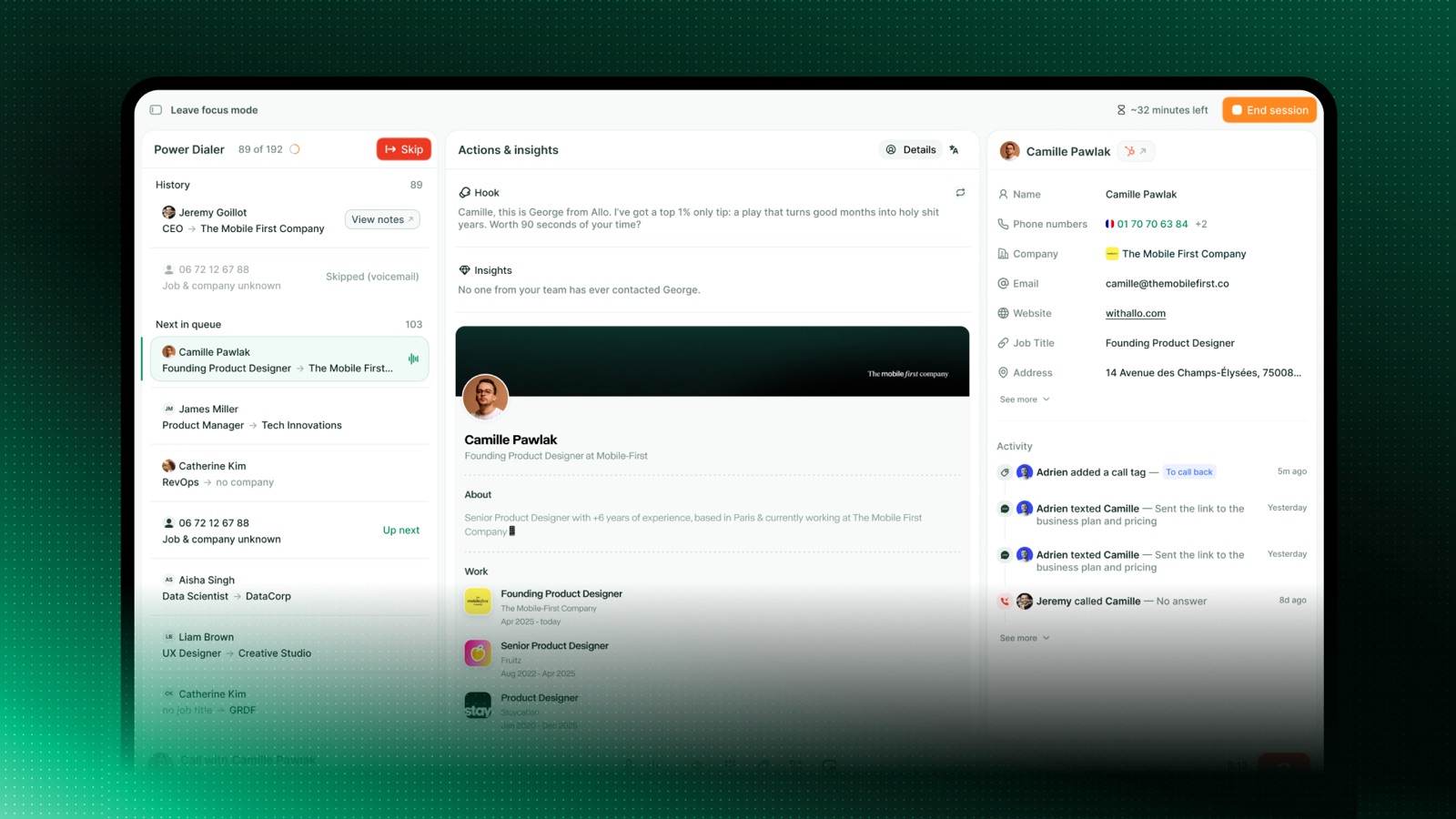
The Power Dialer turns a list of contacts into a single, uninterrupted calling session. Instead of looking up each number, copying it, and dialing by hand, you build a queue once and Allo moves you from one call to the next automatically.
**Available on:** Business plan
**Who can use it:** Every team member has their own queue. Admins and managers can also build a queue for a teammate.
***
## How it works
Add the numbers you want to call. You can add contacts from your call list, paste numbers in bulk, or push a list from your CRM.
Open the queue and press start. Allo dials the first number right away.
When a call ends, Allo automatically queues up the next contact. Tag the call, leave a note, and move forward — no manual dialing in between.
Allo keeps going until the queue is empty. Pause any time, and pick up where you left off later.
Each person has at most one active queue at a time. Building a new queue from scratch replaces the current one.
***
## Build your queue from **everywhere**
There are several ways to add numbers, and you can mix them in the same queue.
Import one or more contacts directly from your Allo CRM or your Calls view.
Upload a CSV of contacts to add them in one sweep.
Using our Chrome Extension, import numbers from virtually any web page.
Connect Claude to Allo and ask it to import contacts with a natural language prompt.
Each entry can carry contact details — name and company — so you see who you're calling before the line connects. When a number matches an existing contact, Allo links the call to it automatically.
***
## Run a session
Open your queue from **web.withallo.com** or the desktop app and press **Start**.
During a session you can:
* **See what's next** — the current contact and the upcoming ones are always visible.
* **Pause and resume** — stop between calls whenever you need a break, then continue from the same spot.
* **Skip a contact** — jump past a number without calling it.
* **Tag and take notes** — apply [call tags](/en/features/call-tags) and write notes between calls, before the next one starts.
Allo waits for you to finish wrapping up before dialing the next number, so you stay in control of the pace.
## Manage a queue
A queue is editable while you build it and between calls.
* **Reorder** — move high-priority contacts to the top.
* **Remove a contact** — drop a single number you no longer want to call.
* **Clear the rest** — remove every contact you haven't reached yet, while keeping the ones you've already called.
* **Reset** — discard the queue entirely and start fresh.
***
## Tips for a productive session
**Filter before you build.** A focused list — one segment, one campaign — beats a giant unsorted queue. Use CRM filters to pull exactly the contacts you want.
**Turn on Do not disturb.** Block inbound calls during a session so nothing breaks your rhythm.
**Tag as you go.** Apply a call tag right after each call while it's fresh. Your analytics stay clean and you don't have to revisit calls later.
**Take short breaks.** Pause between calls rather than abandoning the queue — your progress is saved either way.
***
## Troubleshooting
The Power Dialer is available on the Business plan. Also make sure you're on the latest version of the Allo app. If you see it on the web application but not your desktop, you might need to update Allo.
Check that the number is in a valid format with a country code (for example +1 415 555 0142). Numbers Allo can't recognize as dialable are skipped when you add a list in bulk.
***
## Related
Qualify every call as you work through the queue
Every call in a session is recorded and transcribed
Measure connect rates and outcomes across your sessions
Build and manage queues programmatically
 **Available on:** Business plan
**Who can use it:** Every team member has their own queue. Admins and managers can also build a queue for a teammate.
***
## How it works
**Available on:** Business plan
**Who can use it:** Every team member has their own queue. Admins and managers can also build a queue for a teammate.
***
## How it works