> ## Documentation Index
> Fetch the complete documentation index at: https://help.withallo.com/llms.txt
> Use this file to discover all available pages before exploring further.
# IVR (Interactive Menu)
> Create professional phone menus for call routing
## What is IVR
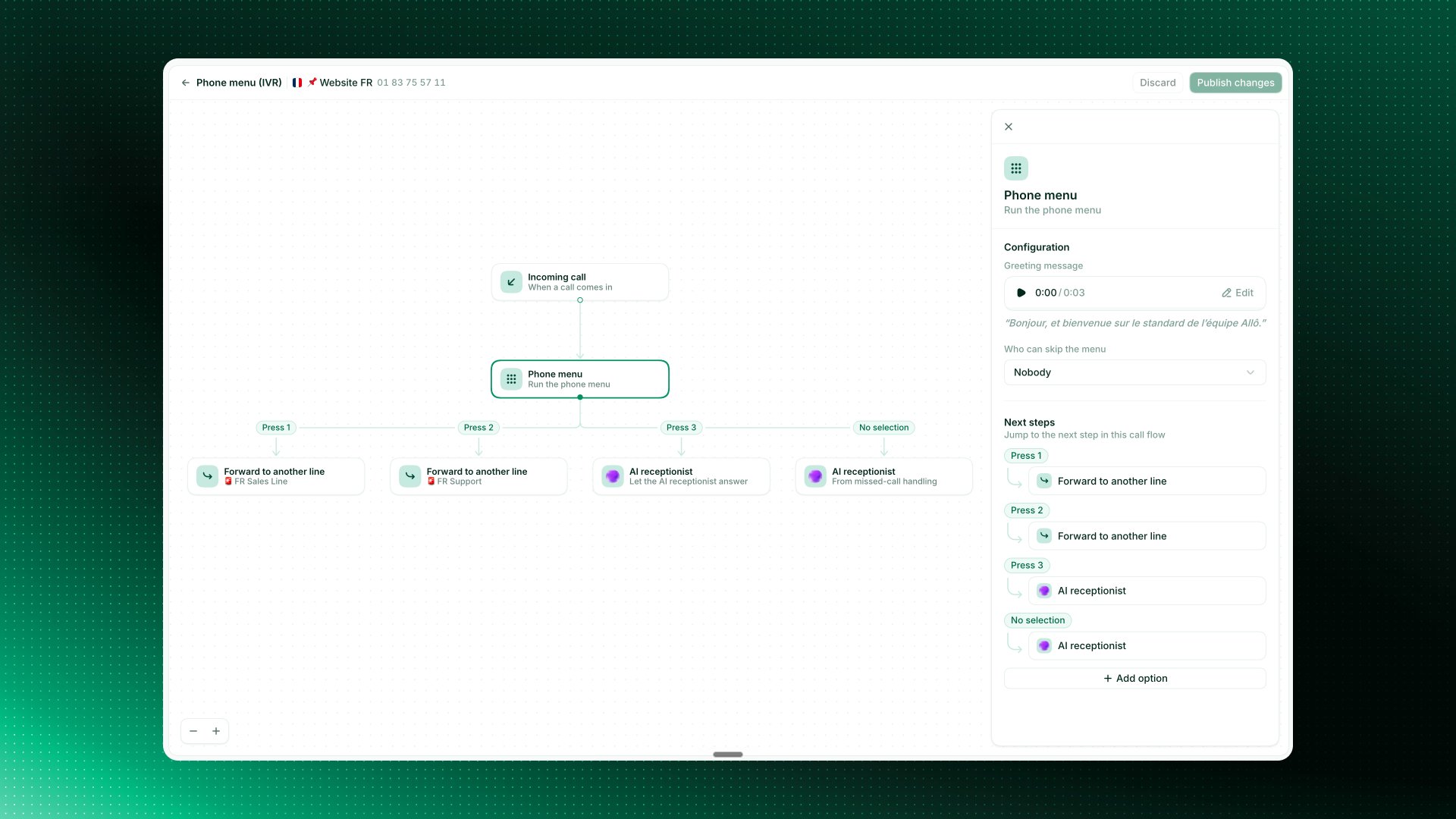
IVR (Interactive Voice Response) lets callers choose where to route their call using their phone keypad. Perfect for departments, multiple services, or professional call routing.
**Example:**\
"Press 1 for Sales, Press 2 for Support, Press 3 for Billing"
**Benefits:**
* Professional image
* Efficient call routing
* Reduce misdirected calls
* Self-service options
***
## Setup IVR menu
Go to Settings in Allo app
Tap "Interactive Menu" at the top
Toggle "Activate Interactive Menu" in top left corner
Write the message callers hear first.
Example: "Thank you for calling \[Company]."
For each option:
1. Tap "Add option"
2. Write what AI should say
3. Choose destination
4. Save option
Choose what happens if caller doesn't press anything:
* Repeat menu
* Send to voicemail
* Forward to number
Call your Allo number to test the experience
***
## How it works
### Caller experience
1. **Call connects** - Hears your welcome message
2. **Menu plays** - AI lists all options
3. **Caller chooses** - Presses number on keypad
4. **Call routes** - Connects to chosen destination
**Example flow:**
> "Thank you for calling ABC Company. Press 1 to reach our Sales team, Press 2 for Customer Support, Press 3 for Billing questions."
>
> *Caller presses 2*
>
> Call routes to Support team.
### What callers hear
The AI voice announces each option automatically:
**You write:**\
"reach our sales team"
**AI says:**\
"Press 1 to reach our sales team"
AI automatically adds "Press \[number]" before each option. Just write what comes after.
***
## IVR types
## Keypad-based menu (default)
Callers press numbers on their phone keypad.
**How it works:**
* AI announces options
* Caller presses 1-8
* Routes to destination
* Simple and reliable
**Available to:**
* All Allo users
* Starter and Business plans
* Setup in-app anytime
**Best for:**
* Clear department routing
* Multiple teams
* Professional businesses
* Consistent routing needs
## Natural language routing (Beta)
Callers speak naturally and AI routes automatically.
**How it works:**
* AI asks: "How can I help you?"
* Caller speaks naturally: "I need help with my order"
* AI understands intent
* Routes to correct team automatically
**Example:**
> **AI:** "Thank you for calling ABC Company. How can I help you today?"
>
> **Caller:** "I want to speak to someone about pricing"
>
> *AI routes to Sales team*
**Advantages:**
* More natural for callers
* No menu to remember
* Faster routing
* Better caller experience
**Availability:**
* Currently in Beta
* Available on request only
* Contact sales team to enable
* May require Business plan
Voice IVR is in beta and available only through our sales team. Contact us to request access.
**Contact sales:**\
Email: [sales@withallo.com](mailto:sales@withallo.com)\
WhatsApp: [Get in touch](https://api.whatsapp.com/send/?phone=15557015299)
***
## Menu option actions
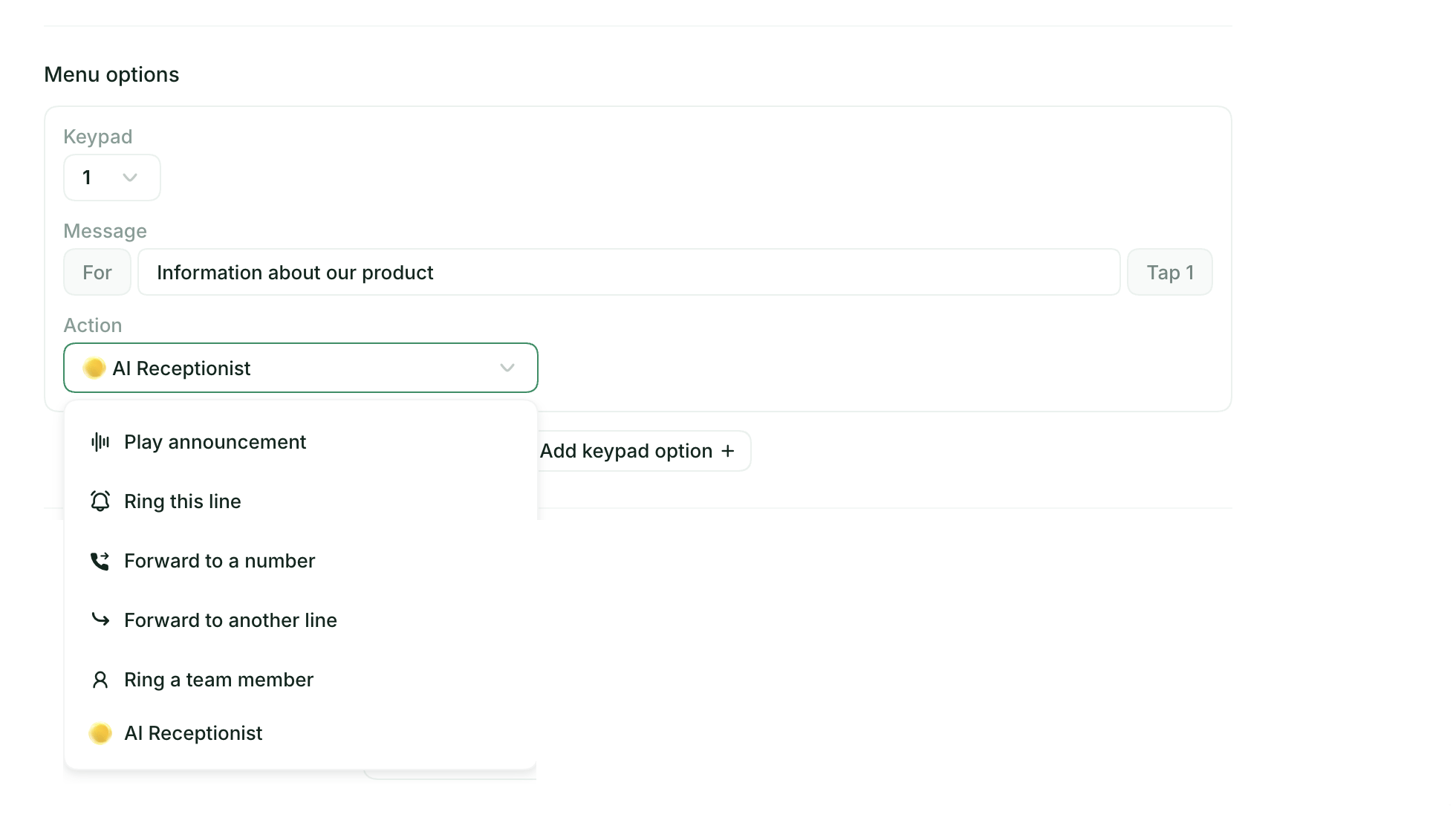
Every menu option is a pair: the message callers hear, and the action that runs when they press the key.
### Available actions
**Play announcement**
Plays a message to the caller. Use it for self-service information: office hours, address, directions.
**Ring this line**
Rings the people who normally answer this number, following its call routing settings (simultaneous or cascade).
**Forward to a number**
Forwards the call to a phone number outside your workspace: an external service, a call center, a partner. Include the country code.
**Forward to another line**
Pick another of your Allo lines from a list, by its name. The call is redirected to that line and behaves like a normal incoming call on it: that line's routing, business hours, and voicemail apply. No need to type the line's phone number.
**Ring a team member**
Rings one specific person. Only their phone rings, the rest of the team is not disturbed. Best for options that should always reach the same person, like billing or management.
**AI Receptionist**
Hands the call to your AI Receptionist, which answers, handles inquiries, and routes intelligently. Available on the Business plan.
[Learn about AI Receptionist](/en/features/virtual-receptionist)
### Which action should I use?
| The caller should reach | Use |
| ---------------------------------------------------------------- | ----------------------- |
| A department with its own Allo number (Sales line, Support line) | Forward to another line |
| One specific person on the team | Ring a team member |
| The team behind this same number | Ring this line |
| Someone outside Allo (external service, call center) | Forward to a number |
| Information only, no human (hours, address) | Play announcement |
| An assistant that answers and routes by itself | AI Receptionist |
***
## Menu structure
### Single-level menu (current)
Allo currently supports one level of menu options.
**Structure:**
```
Main menu
├── Press 1: Sales
├── Press 2: Support
├── Press 3: Billing
└── Press 4: Other
```
**Limit:** 8 options maximum
Multi-level menus (sub-menus) are not currently supported. Keep your menu simple with one level.
### Best practices
**Recommended:**
* 3-5 options for best experience
* Clear, specific destinations
* Logical order (Sales first, etc.)
**Avoid:**
* More than 6 options
* Vague categories
* Overlapping choices
***
## Voice and tone
### Customize AI voice
Choose voice characteristics:
**Voice type:**
* Male or female voice
* Different accents available
* Natural conversational tone
**Speaking pace:**
* Normal (recommended)
* Slower for clarity
* Faster for efficiency
**Professional or friendly:**
* Professional for business
* Friendly for service
* Match your brand voice
**Access:**\
Settings > AI Voice
***
## Menu best practices
### Writing clear options
**Good examples:**
✅ "Press 1 to reach our Sales team"\
✅ "Press 2 for Customer Support"\
✅ "Press 3 to hear our office hours and location"
**Bad examples:**
❌ "Press 1 for Department A"\
❌ "Press 2 if you have questions"\
❌ "Press 3 for other stuff"
### Keep it short
**Ideal menu:**
* 3-5 options maximum
* Under 30 seconds total
* Clear, specific destinations
**Too long:**
* 8 options
* Over 60 seconds
* Vague or overlapping choices
### Professional scripting
**Welcome message:**
Good: "Thank you for calling ABC Consulting."\
Better: "Thank you for calling ABC Consulting. To help us direct your call..."
**Option wording:**
Good: "reach Sales"\
Better: "speak with our Sales team"\
Best: "speak with our Sales team about new projects"
***
## Common menu structures
### Small business (3 options)
```
"Thank you for calling [Company]."
1. Sales and new customer inquiries
2. Customer support
3. Billing and account questions
```
### Service business (4 options)
```
"Thank you for calling [Company]."
1. Schedule an appointment
2. Check appointment status
3. Billing questions
4. All other inquiries
```
### Professional services (5 options)
```
"Thank you for calling [Company]."
1. Speak with an advisor
2. Check account status
3. Make a payment
4. Office hours and locations
5. All other questions
```
### Department routing (4 options)
```
"Thank you for calling [Company]."
1. Sales
2. Technical Support
3. Customer Success
4. Administration
```
***
## Bypass IVR menu
### Let important contacts skip menu
**Setup bypass:**
1. IVR settings
2. Scroll to "Who can skip the menu"
3. Choose option:
* All contacts
* Favorites only
* No one
**Mark favorites:**
1. Open contact profile
2. Tap star icon
3. They now skip IVR and ring you directly
### Emergency bypass
**Add emergency option:**
"If this is an emergency, press 9 now."
Route press 9 to:
* On-call team member
* Emergency line
* Direct to key person
***
## Troubleshooting
**Check:**
* IVR is activated (toggle on)
* At least one option is configured
* Welcome message is not blank
* Not bypassed by business hours settings
**Test:** Call your number and verify menu plays.
**Verify:**
* Options are saved (not drafted)
* Each option has text
* Voice settings are configured
* No special characters in text
**Try:** Re-save each option one by one.
**Check each option:**
* Destination is set correctly
* Phone number includes country code
* Team member has active Allo number
* External number can receive calls
**Test:** Press each option and verify routing.
**Verify:**
* Contact is marked with star (favorite)
* Bypass setting is enabled
* Contact is saved in Allo
* Using correct phone number
**Refresh:** Remove and re-add favorite status.
**Check:**
* Caller is pressing keys (not voice)
* Tone dial (not pulse) enabled on caller phone
* Options are mapped to destinations
* Destination numbers are valid
**Solution:** Test from different phone to rule out caller phone issue.
**Voice IVR is in beta:**
* Available on request only
* Contact our sales team
* May require Business plan
* Currently limited availability
**Contact:**\
Email [sales@withallo.com](mailto:sales@withallo.com) or reach out via WhatsApp
***
## Examples by industry
### Real estate
```
"Thank you for calling [Agency]."
1. Schedule a property showing
2. Speak with an agent
3. Property information
4. Office hours and location
```
### Medical office
```
"Thank you for calling [Practice]."
1. Schedule or change appointment
2. Prescription refills
3. Billing questions
4. Medical emergency - press 9
```
### Law firm
```
"Thank you for calling [Firm]."
1. New client consultations
2. Existing client matters
3. Office administration
4. After-hours urgent matters
```
### E-commerce
```
"Thank you for calling [Store]."
1. Order status
2. Returns and exchanges
3. Product information
4. Customer service
```
***
## Related features
Route calls to team members
Set availability schedule
Intelligent call handling
Screen calls before answering
 ## What is IVR
IVR (Interactive Voice Response) lets callers choose where to route their call using their phone keypad. Perfect for departments, multiple services, or professional call routing.
**Example:**\
"Press 1 for Sales, Press 2 for Support, Press 3 for Billing"
**Benefits:**
* Professional image
* Efficient call routing
* Reduce misdirected calls
* Self-service options
***
## Setup IVR menu
## What is IVR
IVR (Interactive Voice Response) lets callers choose where to route their call using their phone keypad. Perfect for departments, multiple services, or professional call routing.
**Example:**\
"Press 1 for Sales, Press 2 for Support, Press 3 for Billing"
**Benefits:**
* Professional image
* Efficient call routing
* Reduce misdirected calls
* Self-service options
***
## Setup IVR menu
 ### Available actions
**Play announcement**
Plays a message to the caller. Use it for self-service information: office hours, address, directions.
**Ring this line**
Rings the people who normally answer this number, following its call routing settings (simultaneous or cascade).
**Forward to a number**
Forwards the call to a phone number outside your workspace: an external service, a call center, a partner. Include the country code.
**Forward to another line**
Pick another of your Allo lines from a list, by its name. The call is redirected to that line and behaves like a normal incoming call on it: that line's routing, business hours, and voicemail apply. No need to type the line's phone number.
**Ring a team member**
Rings one specific person. Only their phone rings, the rest of the team is not disturbed. Best for options that should always reach the same person, like billing or management.
**AI Receptionist**
Hands the call to your AI Receptionist, which answers, handles inquiries, and routes intelligently. Available on the Business plan.
[Learn about AI Receptionist](/en/features/virtual-receptionist)
### Which action should I use?
| The caller should reach | Use |
| ---------------------------------------------------------------- | ----------------------- |
| A department with its own Allo number (Sales line, Support line) | Forward to another line |
| One specific person on the team | Ring a team member |
| The team behind this same number | Ring this line |
| Someone outside Allo (external service, call center) | Forward to a number |
| Information only, no human (hours, address) | Play announcement |
| An assistant that answers and routes by itself | AI Receptionist |
***
## Menu structure
### Single-level menu (current)
Allo currently supports one level of menu options.
**Structure:**
```
Main menu
├── Press 1: Sales
├── Press 2: Support
├── Press 3: Billing
└── Press 4: Other
```
**Limit:** 8 options maximum
### Available actions
**Play announcement**
Plays a message to the caller. Use it for self-service information: office hours, address, directions.
**Ring this line**
Rings the people who normally answer this number, following its call routing settings (simultaneous or cascade).
**Forward to a number**
Forwards the call to a phone number outside your workspace: an external service, a call center, a partner. Include the country code.
**Forward to another line**
Pick another of your Allo lines from a list, by its name. The call is redirected to that line and behaves like a normal incoming call on it: that line's routing, business hours, and voicemail apply. No need to type the line's phone number.
**Ring a team member**
Rings one specific person. Only their phone rings, the rest of the team is not disturbed. Best for options that should always reach the same person, like billing or management.
**AI Receptionist**
Hands the call to your AI Receptionist, which answers, handles inquiries, and routes intelligently. Available on the Business plan.
[Learn about AI Receptionist](/en/features/virtual-receptionist)
### Which action should I use?
| The caller should reach | Use |
| ---------------------------------------------------------------- | ----------------------- |
| A department with its own Allo number (Sales line, Support line) | Forward to another line |
| One specific person on the team | Ring a team member |
| The team behind this same number | Ring this line |
| Someone outside Allo (external service, call center) | Forward to a number |
| Information only, no human (hours, address) | Play announcement |
| An assistant that answers and routes by itself | AI Receptionist |
***
## Menu structure
### Single-level menu (current)
Allo currently supports one level of menu options.
**Structure:**
```
Main menu
├── Press 1: Sales
├── Press 2: Support
├── Press 3: Billing
└── Press 4: Other
```
**Limit:** 8 options maximum