> ## Documentation Index
> Fetch the complete documentation index at: https://help.withallo.com/llms.txt
> Use this file to discover all available pages before exploring further.

# Call Recordings

> Automatic call recording, transcription, and AI summaries

<iframe src="https://www.youtube.com/embed/GFchp-a7rjk" title="YouTube video player" frameborder="0" className="w-full aspect-video rounded-xl" allow="accelerometer; autoplay; clipboard-write; encrypted-media; gyroscope; picture-in-picture; web-share" allowfullscreen />

## Overview

Every call made through Allo is automatically recorded, transcribed, and summarized by AI. Three things happen after a call ends:

<CardGroup cols={3}>
  <Card title="Audio recording" icon="https://mintcdn.com/themobilefirstcompany/RgYoir1kmfhXIZ06/media/allo-icons/Waveform.svg?fit=max&auto=format&n=RgYoir1kmfhXIZ06&q=85&s=5c43cc5d913d39201b03a7ef19577fbf" width="24" height="24" data-path="media/allo-icons/Waveform.svg">
    A clean audio file you can replay any time
  </Card>

  <Card title="Full transcript" icon="https://mintcdn.com/themobilefirstcompany/s2OJzMorfx_W0cDB/media/allo-icons/Edit.svg?fit=max&auto=format&n=s2OJzMorfx_W0cDB&q=85&s=565fa28e153abafa4e3556791503d624" width="24" height="24" data-path="media/allo-icons/Edit.svg">
    Word-for-word, searchable across your history
  </Card>

  <Card title="AI summary" icon="https://mintcdn.com/themobilefirstcompany/RgYoir1kmfhXIZ06/media/allo-icons/AI.svg?fit=max&auto=format&n=RgYoir1kmfhXIZ06&q=85&s=b8c732c713aa282c65b6ea2c48e464c4" width="24" height="24" data-path="media/allo-icons/AI.svg">
    Key points, action items, and next steps
  </Card>
</CardGroup>

Available on both Starter and Business plans.

<Warning>
  You are responsible for complying with local laws regarding call recording. Many jurisdictions require informing callers that the call is being recorded. See [Recording compliance](/en/features/call-recording-compliance).
</Warning>

***

## AI summaries

After each call, AI analyzes the conversation and generates a summary. By default, Allo shows you an **enhanced summary**: a complete overview of the call. Or pick a template to refocus the summary around what matters for that call type.

Every summary is editable: open a call, edit inline, add your own notes. Changes sync to your connected CRM in real time.

<iframe src="https://www.youtube.com/embed/8gLS3ekQYJ8" title="Call summary templates" frameborder="0" className="w-full aspect-video rounded-xl" allow="accelerometer; autoplay; clipboard-write; encrypted-media; gyroscope; picture-in-picture; web-share" allowfullscreen />

### Built-in templates

<CardGroup cols={2}>
  <Card title="Cold call" icon="https://mintcdn.com/themobilefirstcompany/s2OJzMorfx_W0cDB/media/allo-icons/Phone_outbound.svg?fit=max&auto=format&n=s2OJzMorfx_W0cDB&q=85&s=041b73ebde229538f87335cd4975e765" width="24" height="24" data-path="media/allo-icons/Phone_outbound.svg">
    Opening, hook, objections, disposition, next steps
  </Card>

  <Card title="Sales call" icon="https://mintcdn.com/themobilefirstcompany/s2OJzMorfx_W0cDB/media/allo-icons/Phone_call.svg?fit=max&auto=format&n=s2OJzMorfx_W0cDB&q=85&s=fbe6646ec42f31043b7aad5b7bd71753" width="24" height="24" data-path="media/allo-icons/Phone_call.svg">
    Objections raised, next steps, commitments made
  </Card>

  <Card title="Support call" icon="https://mintcdn.com/themobilefirstcompany/s2OJzMorfx_W0cDB/media/allo-icons/Headset.svg?fit=max&auto=format&n=s2OJzMorfx_W0cDB&q=85&s=0fa578947588e0cafe1f092678ab2407" width="24" height="24" data-path="media/allo-icons/Headset.svg">
    Issue, resolution, follow-up needed
  </Card>

  <Card title="Discovery call" icon="https://mintcdn.com/themobilefirstcompany/s2OJzMorfx_W0cDB/media/allo-icons/MagnifyingGlass.svg?fit=max&auto=format&n=s2OJzMorfx_W0cDB&q=85&s=2b9f2cd4a1c54d72809f76b70d74f881" width="24" height="24" data-path="media/allo-icons/MagnifyingGlass.svg">
    Pain points, current solution, budget, decision process
  </Card>
</CardGroup>

### Set a default per line

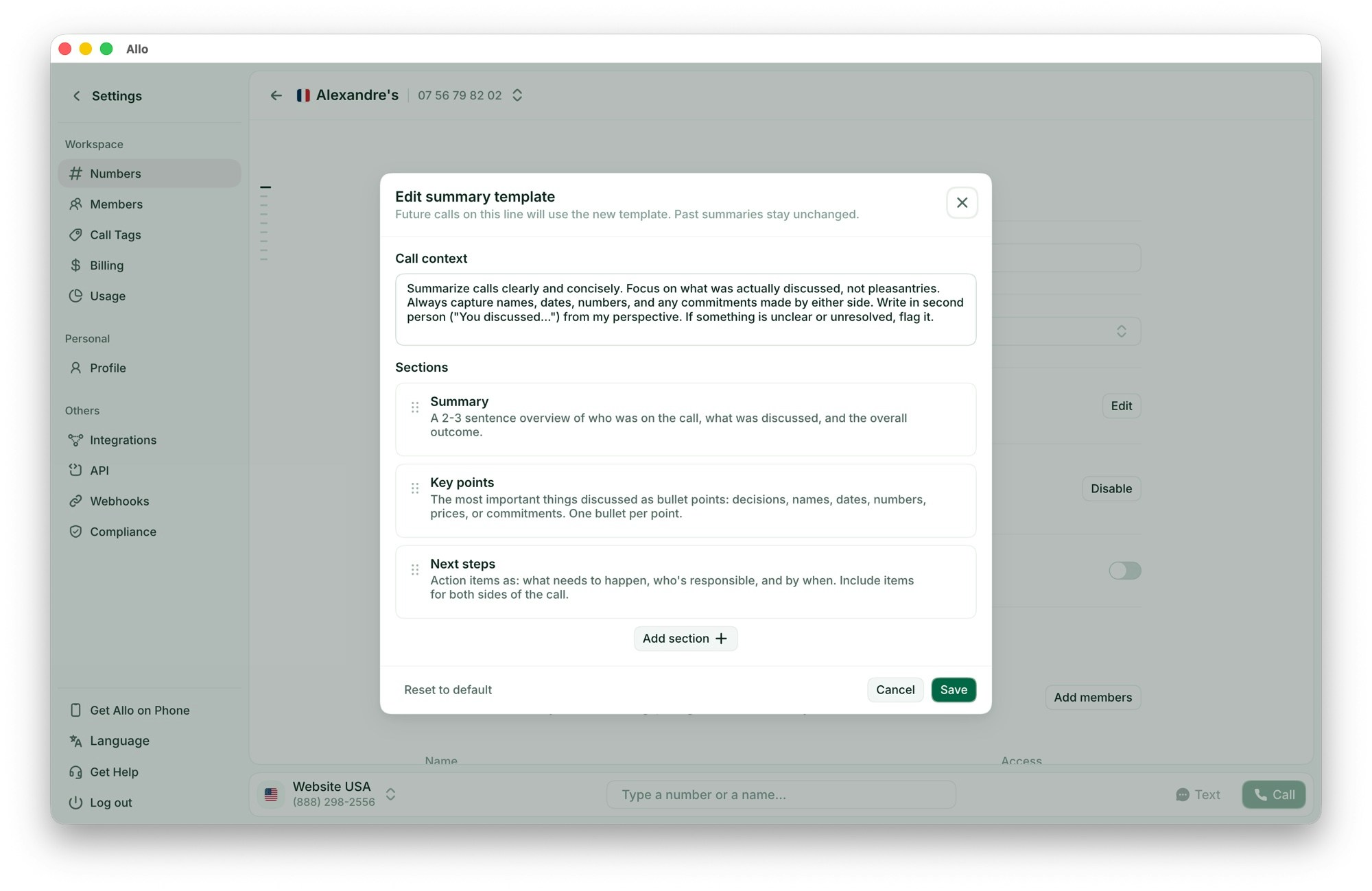
Build your own summary template for any Allo number. Edit the prompt the AI uses, add the sections you want, and every future call on that line uses it automatically.

<Steps>
  <Step title="Open the line settings">
    Head to **Settings** > **Numbers**, then select the number you want to configure
  </Step>

  <Step title="Go to General settings">
    Find the **Summary template** field in the general settings section
  </Step>

  <Step title="Customize the template">
    Edit the **Call context** (the prompt that tells the AI how to summarize) and add the sections that matter for that line
  </Step>

  <Step title="Save">
    Every future call on that line uses your template by default. Past summaries stay unchanged.
  </Step>
</Steps>

<Frame>
  <img src="https://mintcdn.com/themobilefirstcompany/4hhS9jGW3NCCy2LI/images/edit-summary-template-en.jpg?fit=max&auto=format&n=4hhS9jGW3NCCy2LI&q=85&s=1ddbc3f01deea3c708b3484329b1365f" alt="Edit summary template modal in Allo settings" width="2000" height="1299" data-path="images/edit-summary-template-en.jpg" />
</Frame>

***

## Transcripts

<Tabs>
  <Tab title="Features">
    Every call is transcribed within seconds after ending.

    * Complete conversation text
    * Speaker identification (you vs. caller)
    * Timestamps and punctuation
    * Multi-language support (English, French, Spanish, German, and more, auto-detected)

    **Search your call history:**

    <Steps>
      <Step title="Open Inbox">
        Tap the Inbox tab in the Allo app
      </Step>

      <Step title="Use the search bar">
        Type any keyword from a past conversation
      </Step>

      <Step title="Find by content">
        Allo searches inside transcripts, not just names or numbers
      </Step>
    </Steps>

    <iframe src="https://www.youtube.com/embed/5VSBGinpg7Q" title="Searchable transcripts" frameborder="0" className="w-full aspect-video rounded-xl" allow="accelerometer; autoplay; clipboard-write; encrypted-media; gyroscope; picture-in-picture; web-share" allowfullscreen />
  </Tab>

  <Tab title="Accuracy">
    Typical accuracy is **90–95%** for clear audio in supported languages.

    **Higher accuracy with:**

    * Clear audio quality
    * Minimal background noise
    * Standard accents and pace

    **Lower accuracy with:**

    * Poor connection
    * Heavy background noise
    * Multiple people talking at once

    <Note>
      Transcripts are a convenience feature. For critical information, listen to the audio recording.
    </Note>

    **Tips to improve transcripts:**

    * Use Allo in a quiet environment
    * Speak clearly at normal pace
    * Use headphones or a good phone connection
    * Avoid speakerphone when possible
  </Tab>

  <Tab title="Privacy">
    **Storage:** Transcripts are stored on Allo's secure servers, encrypted at rest and in transit. Switch to Mistral (European) for data sovereignty. See [Recording compliance](/en/features/call-recording-compliance).

    **Retention:** Kept indefinitely until you delete them manually.

    **Access:** You, team members you invite (Business plan), and connected CRMs. Allo support cannot see transcripts unless you share them for troubleshooting.

    **Delete a transcript:** open the call in Inbox, tap delete, confirm. Deleting in Allo doesn't delete from connected CRMs or email. Handle those separately.

    [Read our privacy policy](https://withallo.com/privacy-policy) · [Visit our Trust Center](https://trust.themobilefirstcompany.com/)
  </Tab>
</Tabs>

***

## What gets recorded

<CardGroup cols={2}>
  <Card title="Allo app calls" icon="https://mintcdn.com/themobilefirstcompany/s2OJzMorfx_W0cDB/media/allo-icons/Phone_fill.svg?fit=max&auto=format&n=s2OJzMorfx_W0cDB&q=85&s=194a03ec87cf537d83906ddc8d564846" width="24" height="24" data-path="media/allo-icons/Phone_fill.svg">
    All calls made or received through the Allo app
  </Card>

  <Card title="Forwarded calls" icon="https://mintcdn.com/themobilefirstcompany/s2OJzMorfx_W0cDB/media/allo-icons/Phone_transfer.svg?fit=max&auto=format&n=s2OJzMorfx_W0cDB&q=85&s=bcc07fcb3e14318b91923d90466301a2" width="24" height="24" data-path="media/allo-icons/Phone_transfer.svg">
    Calls forwarded to your Allo number
  </Card>

  <Card title="Team calls" icon="https://mintcdn.com/themobilefirstcompany/RgYoir1kmfhXIZ06/media/allo-icons/Teams.svg?fit=max&auto=format&n=RgYoir1kmfhXIZ06&q=85&s=724b6e6c55d76354d76f2918bf69d507" width="24" height="24" data-path="media/allo-icons/Teams.svg">
    Calls between team members
  </Card>

  <Card title="AI Receptionist" icon="https://mintcdn.com/themobilefirstcompany/RgYoir1kmfhXIZ06/media/allo-icons/AI.svg?fit=max&auto=format&n=RgYoir1kmfhXIZ06&q=85&s=b8c732c713aa282c65b6ea2c48e464c4" width="24" height="24" data-path="media/allo-icons/AI.svg">
    Calls handled by the AI assistant
  </Card>
</CardGroup>

### What is not recorded

<CardGroup cols={3}>
  <Card title="Native dialer calls" icon="https://mintcdn.com/themobilefirstcompany/s2OJzMorfx_W0cDB/media/allo-icons/Phone_decline.svg?fit=max&auto=format&n=s2OJzMorfx_W0cDB&q=85&s=0a742fa59c5b29d07c87886b89211371" width="24" height="24" data-path="media/allo-icons/Phone_decline.svg">
    Calls outside the Allo app using your phone's dialer
  </Card>

  <Card title="WhatsApp calls" icon="https://mintcdn.com/themobilefirstcompany/0w3bVWjKfZPY4i7y/media/integrations/Whatsapp.svg?fit=max&auto=format&n=0w3bVWjKfZPY4i7y&q=85&s=b54e0f8a996b4139a64763831eea7489" width="24" height="24" data-path="media/integrations/Whatsapp.svg">
    WhatsApp voice calls
  </Card>

  <Card title="Personal number" icon="https://mintcdn.com/themobilefirstcompany/s2OJzMorfx_W0cDB/media/allo-icons/Phone_outbound.svg?fit=max&auto=format&n=s2OJzMorfx_W0cDB&q=85&s=041b73ebde229538f87335cd4975e765" width="24" height="24" data-path="media/allo-icons/Phone_outbound.svg">
    Calls made with "Call with iPhone" (France only)
  </Card>
</CardGroup>

Recording starts when the call connects and stops when it ends. No action required.

***

## Where to find everything

<Tabs>
  <Tab title="In the Allo app">
    <Steps>
      <Step title="Open the Inbox">
        Tap the Inbox tab on mobile or desktop
      </Step>

      <Step title="Select a call">
        Tap any call to view its details
      </Step>

      <Step title="Find your assets">
        * **Play button**: listen to the audio recording
        * **Transcript**: full text of the conversation
        * **Summary**: AI-generated key points
        * **Call details**: duration, time, outcome
      </Step>
    </Steps>
  </Tab>

  <Tab title="Via email">
    After each call, you receive an email with the summary, the full transcript, a link to the audio recording, caller info, and timestamp.

    **Set your email:** Go to **Settings** > **Profile** > **Work email**.

    **Turn off:** Contact support to disable automatic email notifications.
  </Tab>

  <Tab title="In your CRM">
    If you've connected a CRM, recordings and transcripts sync automatically:

    * Call logged as activity
    * Recording attached
    * Transcript included
    * AI summary added

    [View all CRM integrations](/en/integrations/overview)
  </Tab>
</Tabs>

***

## Settings & alternatives

### Disable call recording

There's no toggle in the app to fully turn off recording. Two lighter alternatives:

<CardGroup cols={2}>
  <Card title="Privacy Mode" icon="https://mintcdn.com/themobilefirstcompany/RgYoir1kmfhXIZ06/media/allo-icons/Shield-check-outline.svg?fit=max&auto=format&n=RgYoir1kmfhXIZ06&q=85&s=0e01d18acdbd4c8b7973127c6dc93cb9" href="/en/features/call-recording-compliance" width="24" height="24" data-path="media/allo-icons/Shield-check-outline.svg">
    Disables audio storage but keeps transcripts and AI summaries. Ideal for dual-consent states.
  </Card>

  <Card title="Transcription-only" icon="https://mintcdn.com/themobilefirstcompany/s2OJzMorfx_W0cDB/media/allo-icons/Edit.svg?fit=max&auto=format&n=s2OJzMorfx_W0cDB&q=85&s=565fa28e153abafa4e3556791503d624" width="24" height="24" data-path="media/allo-icons/Edit.svg">
    Disables transcription, keeps only AI summaries. Maximum data minimization.
  </Card>
</CardGroup>

**Full disable:** Contact Allo support.

<Warning>
  Fully disabling recording also disables transcripts and AI summaries. Consider Privacy Mode first.
</Warning>

### Recording consent

In many jurisdictions, you must inform callers that the call is being recorded.

**How to comply:**

* Add an announcement to your IVR menu
* Include it in your voicemail greeting
* Have the AI Receptionist mention it
* State it verbally at the start of every call

**Example announcement:** "This call may be recorded for quality and training purposes."

See our [Call Recording Compliance guide](/en/features/call-recording-compliance) for US state requirements and how to configure Allo's compliance features.

### Recording retention

Recordings are kept indefinitely in your account by default. Contact support for custom retention policies.

***

## Best practices

### Quality recordings

* Use headphones or earbuds
* Choose a quiet location
* Ensure a stable internet connection
* Avoid speakerphone when possible

### Team use

* Review recordings for coaching
* Share best calls as training material
* Use the Cold call or Discovery call template to spot patterns
* Random call reviews for quality assurance

### Compliance

* Inform callers at call start
* Add a disclaimer in the voicemail greeting
* Include it in the IVR announcement
* Document your consent process

***

## Troubleshooting

<AccordionGroup>
  <Accordion title="Call not recorded">
    Common reasons:

    * Call made outside the Allo app (native dialer)
    * WhatsApp call (not supported)
    * "Call with iPhone" used (France personal number)
    * Call too short (under 3 seconds)

    **Verify:** check the call appears in your Inbox.
  </Accordion>

  <Accordion title="No transcript available">
    * Call still processing (wait 1–2 minutes)
    * Audio quality too poor
    * Call too short to transcribe
    * Language not supported

    Audio recording is still available even without a transcript.
  </Accordion>

  <Accordion title="Transcript is inaccurate">
    Background noise, poor connection, strong accents, or multiple speakers all reduce accuracy. Listen to the audio for the source of truth.
  </Accordion>

  <Accordion title="Can't access recording link">
    * You're logged into Allo
    * Recording link not modified or truncated
    * Active internet connection

    **Solution:** open the recording from the Inbox instead of the email link.
  </Accordion>

  <Accordion title="Recording link not working for others">
    Recording links require authentication. Team members need their own Allo account on your team. For external sharing, use the Google Sheets integration.
  </Accordion>

  <Accordion title="Want to disable recordings entirely">
    There's no in-app toggle. Contact Allo support to request recording be disabled for your account. Note: this also disables transcripts and summaries. Consider Privacy Mode first.
  </Accordion>
</AccordionGroup>
