> ## Documentation Index
> Fetch the complete documentation index at: https://help.withallo.com/llms.txt
> Use this file to discover all available pages before exploring further.
# Call Phone Numbers From Websites
> Turn on Use Allo for phone links in the Allo web app, and clicking a phone number on a website or in a web CRM starts the call in Allo
To call a phone number from a website in one click, turn on **Use Allo for phone links** in the Allo web app, then allow it in your browser. After that, clicking a phone link on a website or in a web CRM starts the call in Allo, from your Allo number. You no longer retype the number.
## Before you start
* Use Google Chrome or Microsoft Edge on a computer. The setting does not appear in Safari or Firefox.
* Sign in to the Allo web app at [web.withallo.com](https://web.withallo.com) in that browser.
* The setting is saved in this browser only. Turn it on again in each browser and on each computer you use.
* The setting is for the web app. It does not appear in the Allo desktop app.
## How to turn on phone links
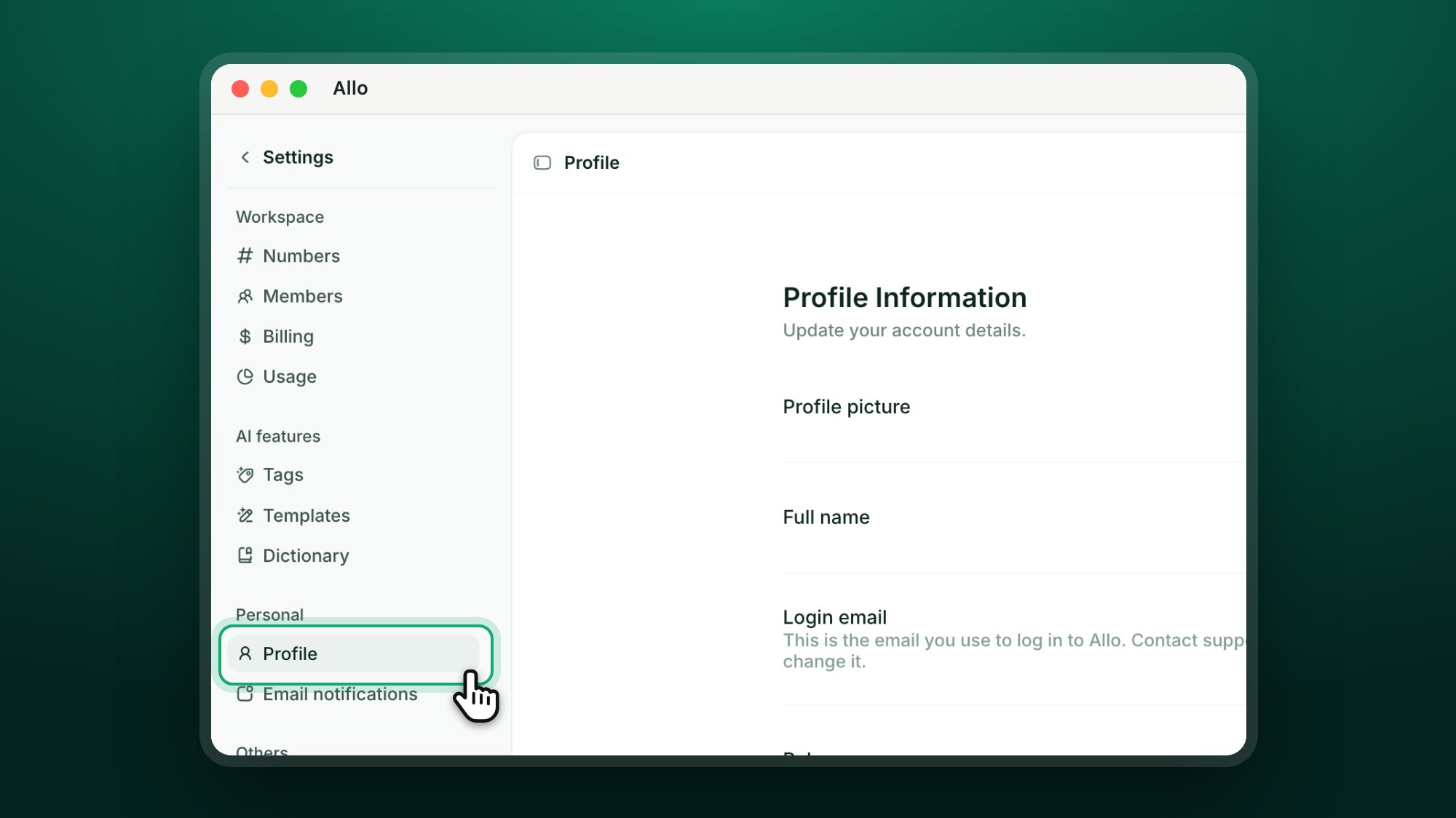
In the Allo web app, click **Settings** in the left sidebar, then **Profile**.
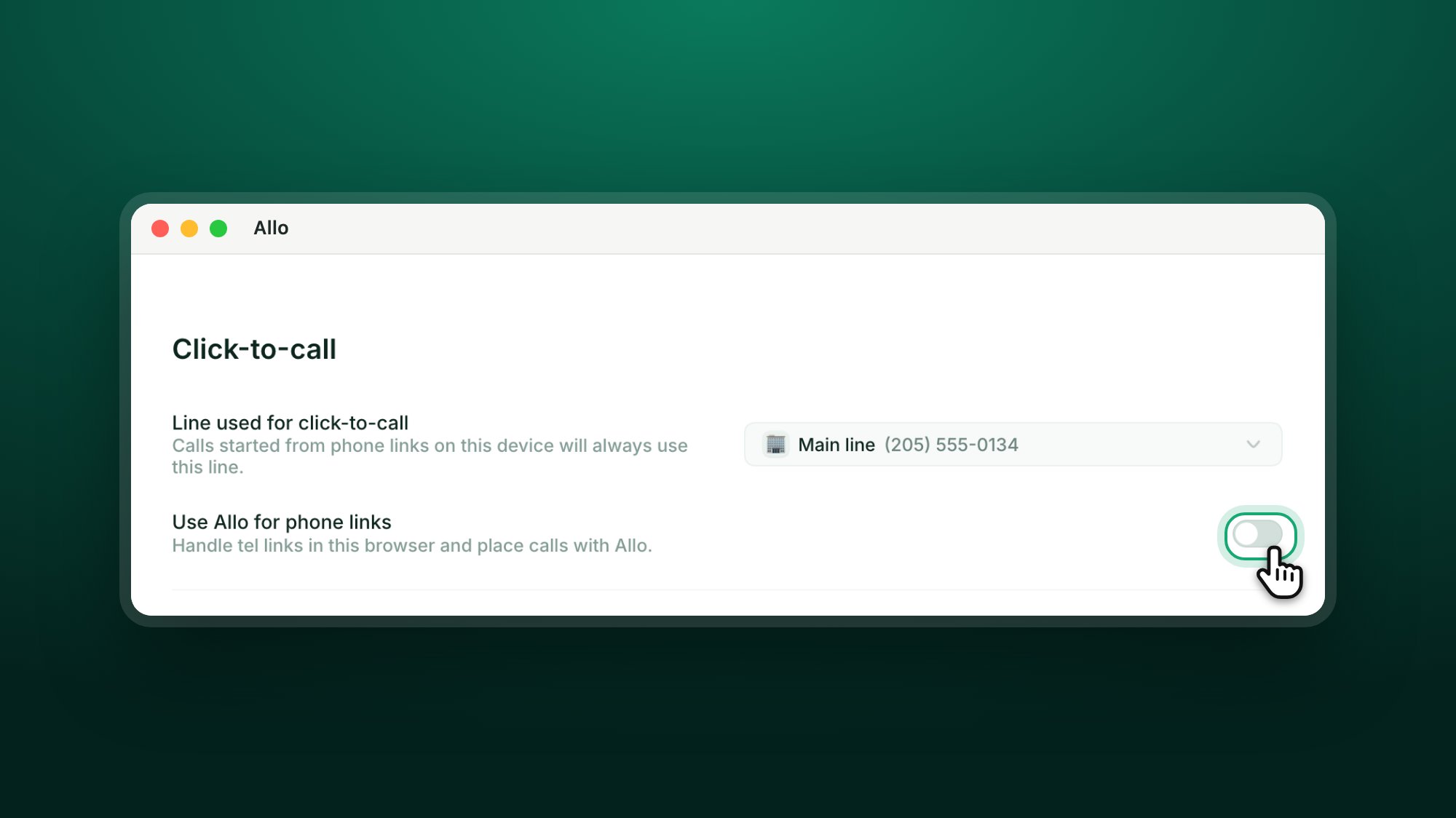
 Scroll to the **Click-to-call** section and turn on **Use Allo for phone links**.
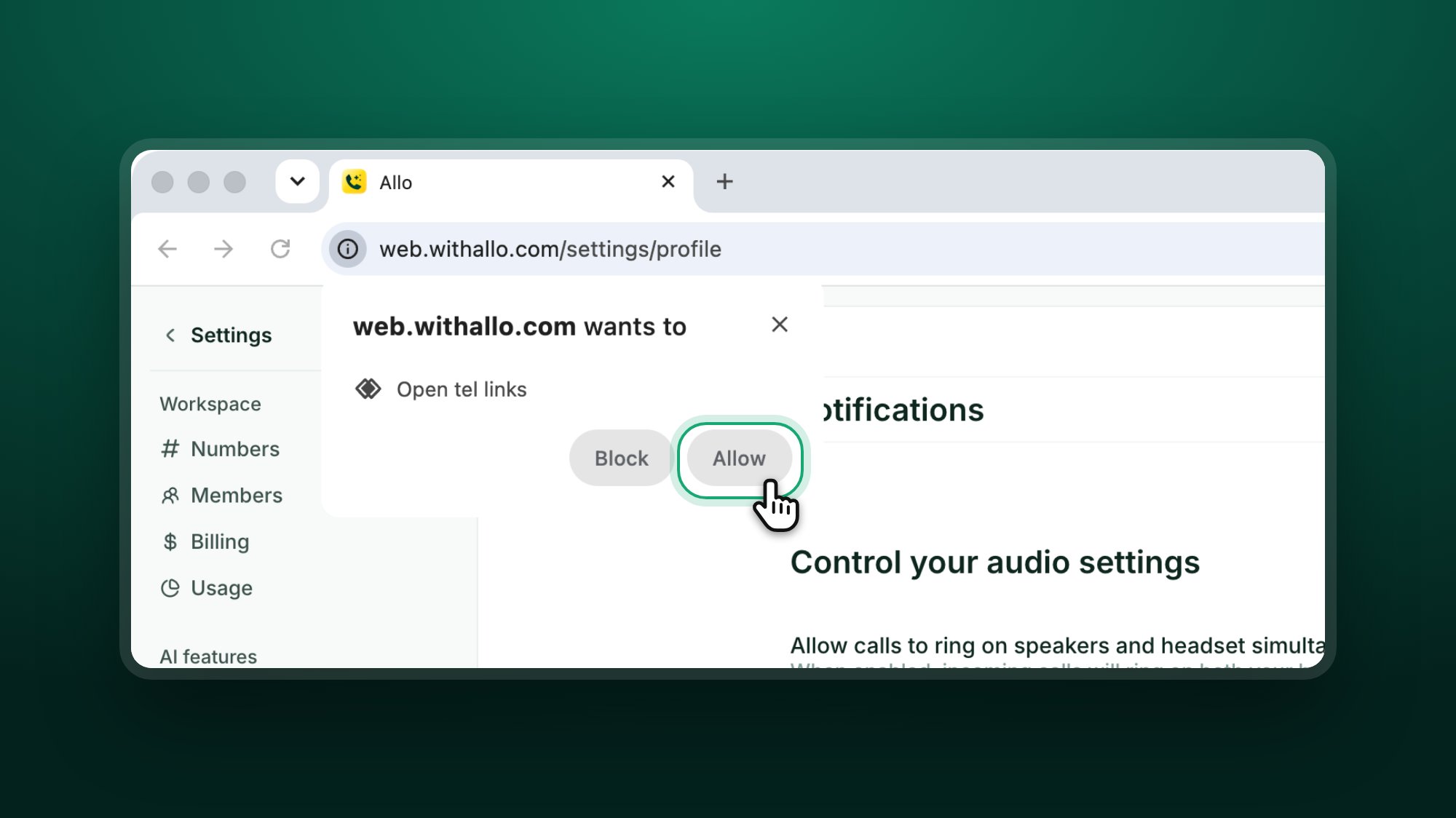
 Chrome shows a prompt under the address bar: **web.withallo.com wants to Open tel links**. Click **Allow**.
 In the same section, pick a line in **Line used for click-to-call**. Calls from phone links always use this line. If you skip this step, Allo asks which line to use the first time you click a phone link, then remembers your choice. With one line, Allo uses it and there is nothing to choose.
## Try it
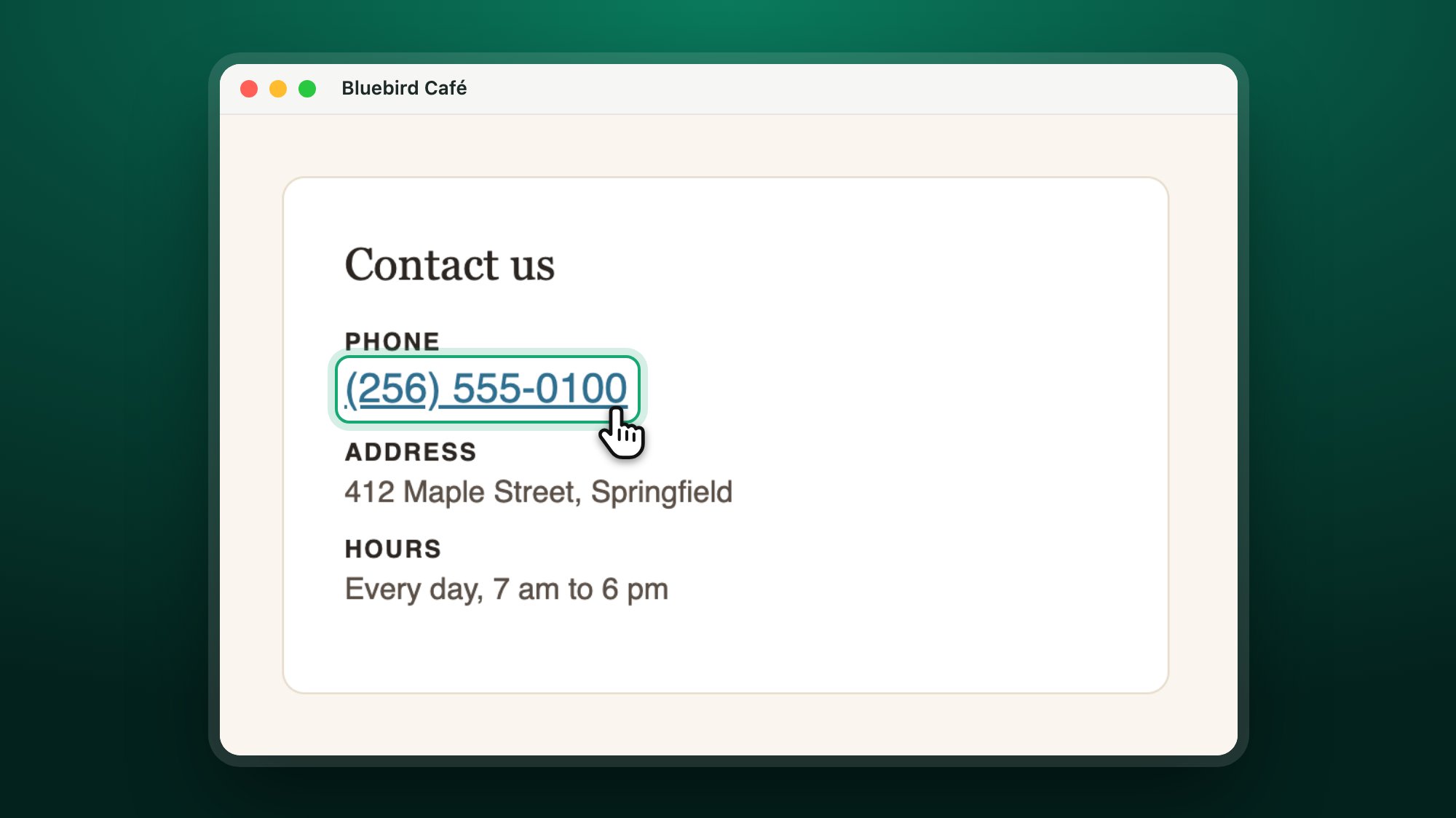
Go to a website that shows a phone number as a link, such as a contact page, and click the number. The Allo web app opens and the call starts.
In the same section, pick a line in **Line used for click-to-call**. Calls from phone links always use this line. If you skip this step, Allo asks which line to use the first time you click a phone link, then remembers your choice. With one line, Allo uses it and there is nothing to choose.
## Try it
Go to a website that shows a phone number as a link, such as a contact page, and click the number. The Allo web app opens and the call starts.
 If you have more than one line and have not chosen one yet, Allo shows **Choose a line for this call**. Select a line and click **Start Call**.
## How to turn off phone links
Go to **Settings** > **Profile** in the Allo web app and turn off **Use Allo for phone links**. Phone links in this browser then open the way they did before.
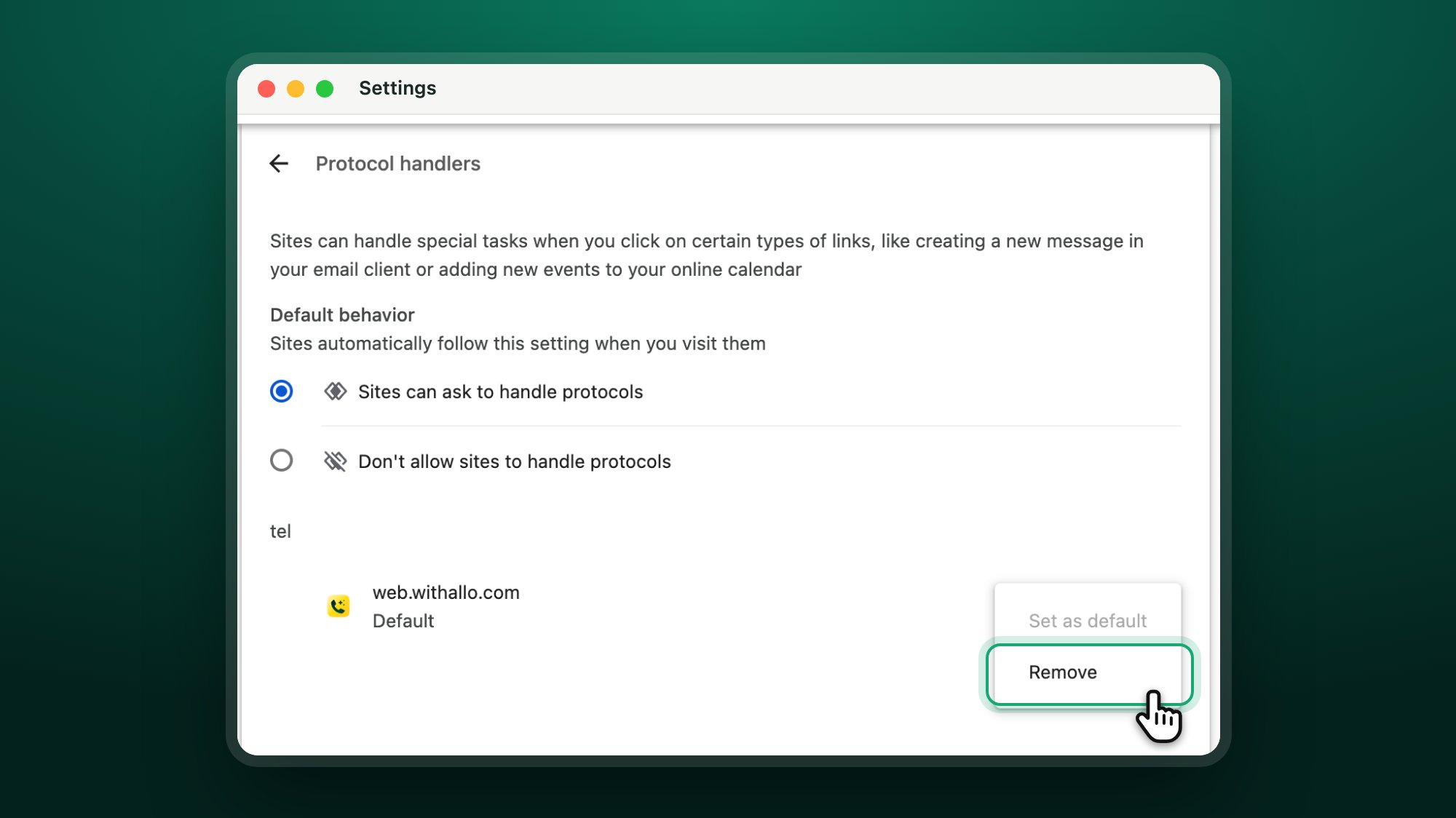
You can also remove Allo in Chrome. Go to `chrome://settings/handlers` (**Protocol handlers**). Under **tel**, click the three dots next to web.withallo.com, then click **Remove**.
If you have more than one line and have not chosen one yet, Allo shows **Choose a line for this call**. Select a line and click **Start Call**.
## How to turn off phone links
Go to **Settings** > **Profile** in the Allo web app and turn off **Use Allo for phone links**. Phone links in this browser then open the way they did before.
You can also remove Allo in Chrome. Go to `chrome://settings/handlers` (**Protocol handlers**). Under **tel**, click the three dots next to web.withallo.com, then click **Remove**.
 If you remove Allo there, the switch in Allo still shows as on. Turn it off and on again to set up phone links again.
## Troubleshooting
Phone links work only when the website shows the number as a link. A number written as plain text does not start a call when you click it.
Copy the number into the Allo dialer, or install the [Allo Chrome Extension](/en/integrations/chrome-extension). The extension adds a call button next to phone numbers on web pages, including plain text numbers.
Your browser still sends phone links to another app.
1. In the Allo web app, go to **Settings** > **Profile** and check that **Use Allo for phone links** is on.
2. Turn it off and on again, then click **Allow** in the browser prompt.
3. In Chrome, go to `chrome://settings/handlers`. Under **tel**, web.withallo.com should show **Default**. If it does not, click the three dots next to it, then **Set as default**.
Go to **Settings** > **Profile** in the Allo web app, turn **Use Allo for phone links** off and on again, then click **Allow** in the prompt.
If no prompt appears, go to `chrome://settings/handlers` in Chrome and check that **Sites can ask to handle protocols** is selected. Then turn the switch in Allo off and on again.
The switch in Allo shows as on even when the browser did not allow it. Test with a phone link to be sure.
The setting appears only in the Allo web app, in Chrome or Edge. Open [web.withallo.com](https://web.withallo.com) in one of these browsers and go to **Settings** > **Profile**.
## Related pages
Make calls from other apps go through Allo on your phone
Choose which number your outbound calls use
Call any phone number you see on a web page
Get help from the Allo team
This documentation is built and hosted on [Mintlify](https://mintlify.com), a developer documentation platform.
If you remove Allo there, the switch in Allo still shows as on. Turn it off and on again to set up phone links again.
## Troubleshooting
Phone links work only when the website shows the number as a link. A number written as plain text does not start a call when you click it.
Copy the number into the Allo dialer, or install the [Allo Chrome Extension](/en/integrations/chrome-extension). The extension adds a call button next to phone numbers on web pages, including plain text numbers.
Your browser still sends phone links to another app.
1. In the Allo web app, go to **Settings** > **Profile** and check that **Use Allo for phone links** is on.
2. Turn it off and on again, then click **Allow** in the browser prompt.
3. In Chrome, go to `chrome://settings/handlers`. Under **tel**, web.withallo.com should show **Default**. If it does not, click the three dots next to it, then **Set as default**.
Go to **Settings** > **Profile** in the Allo web app, turn **Use Allo for phone links** off and on again, then click **Allow** in the prompt.
If no prompt appears, go to `chrome://settings/handlers` in Chrome and check that **Sites can ask to handle protocols** is selected. Then turn the switch in Allo off and on again.
The switch in Allo shows as on even when the browser did not allow it. Test with a phone link to be sure.
The setting appears only in the Allo web app, in Chrome or Edge. Open [web.withallo.com](https://web.withallo.com) in one of these browsers and go to **Settings** > **Profile**.
## Related pages
Make calls from other apps go through Allo on your phone
Choose which number your outbound calls use
Call any phone number you see on a web page
Get help from the Allo team
This documentation is built and hosted on [Mintlify](https://mintlify.com), a developer documentation platform.